> ## Documentation Index
> Fetch the complete documentation index at: https://docs.notifuse.com/llms.txt
> Use this file to discover all available pages before exploring further.
# Automations
> Create automated workflows that trigger based on contact behavior and events
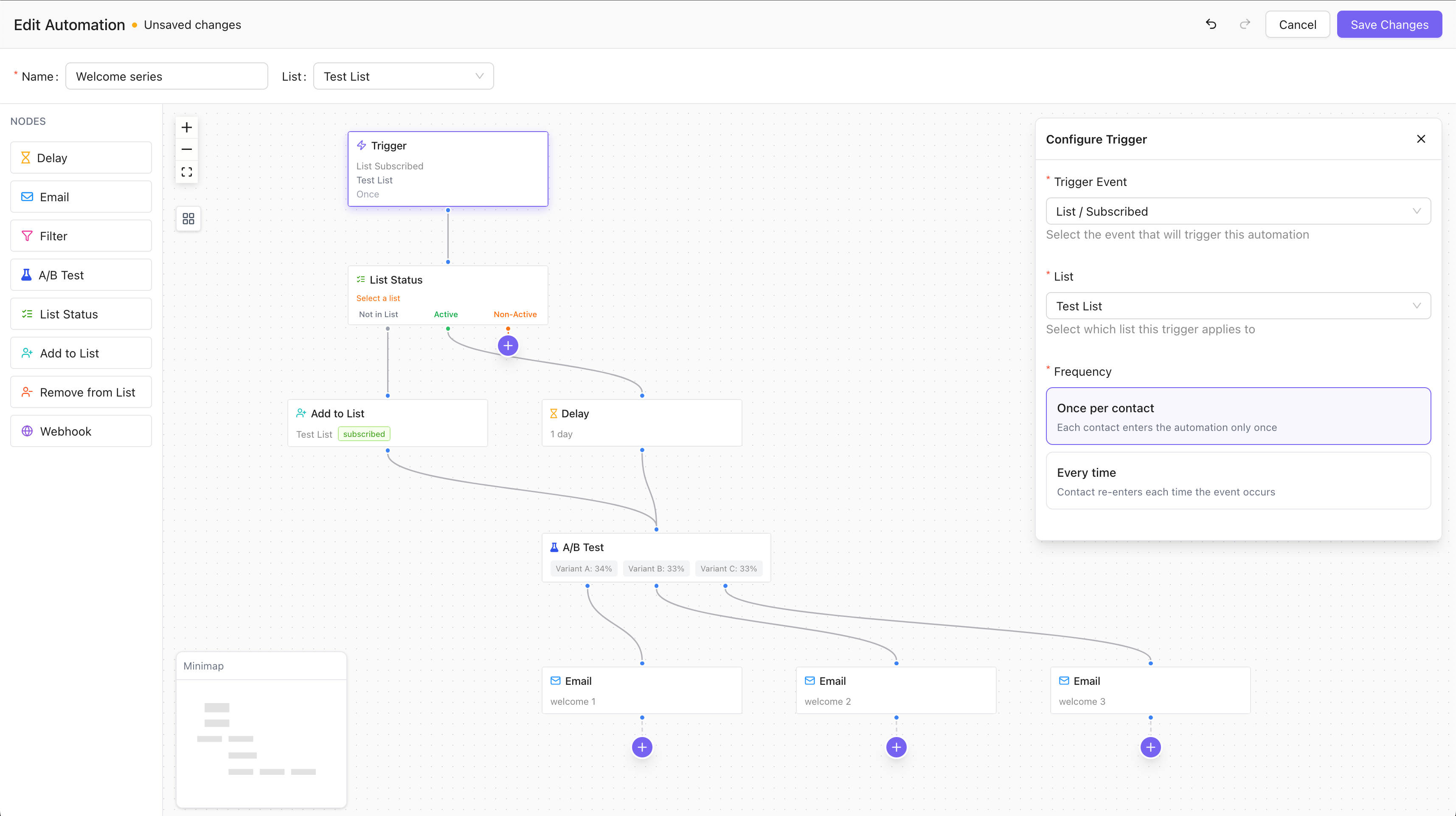 Marketing automations let you create event-driven workflows that automatically engage contacts based on their behavior and lifecycle events. Instead of manually sending emails, automations trigger actions when specific events occur—like a contact subscribing to a list, opening an email, or completing a custom event.
**Key Benefits:**
* **Automated nurturing**: Welcome sequences, onboarding flows, re-engagement campaigns
* **Triggered emails**: Send the right message at the right moment based on contact actions
* **Behavioral responses**: React to email opens, clicks, bounces, and custom events
## Automation Lifecycle
Automations have three states that control their behavior:
| Status | Description |
| ---------- | ------------------------------------------------------------------- |
| **Draft** | Building and testing mode. No contacts are enrolled. |
| **Live** | Active automation. Contacts are enrolled when trigger events occur. |
| **Paused** | Stops new enrollments. In-progress journeys continue to completion. |
**Workflow:**
1. Create automation in **Draft** mode
2. Configure trigger and add nodes
3. **Activate** to go live and start enrolling contacts
4. **Pause** when needed—active contacts continue their journey
5. **Delete** performs soft-delete with recovery capability
## Triggers
Triggers define when contacts enter an automation. They're based on events that appear in the contact timeline.
### Trigger Frequency
| Frequency | Behavior |
| ------------ | -------------------------------------------------------- |
| `once` | Contact enters only on the first occurrence of the event |
| `every_time` | Contact can re-enter each time the event occurs |
### Event Types
Automations can trigger on any of these timeline events:
#### Contact Events
| Event | Description |
| ----------------- | ------------------------------ |
| `contact.created` | New contact added to workspace |
| `contact.updated` | Contact fields modified |
| `contact.deleted` | Contact removed from workspace |
#### List Events
| Event | Description |
| ------------------- | ---------------------------------------------- |
| `list.subscribed` | Contact subscribed to a list |
| `list.unsubscribed` | Contact unsubscribed from a list |
| `list.confirmed` | Contact confirmed subscription (double opt-in) |
| `list.resubscribed` | Previously unsubscribed contact resubscribed |
| `list.bounced` | Email to contact bounced |
| `list.complained` | Contact marked email as spam |
| `list.pending` | Contact in pending confirmation state |
| `list.removed` | Contact removed from list |
List events require selecting a specific list in the trigger configuration.
#### Segment Events
| Event | Description |
| ---------------- | ------------------------------------------ |
| `segment.joined` | Contact matched segment criteria |
| `segment.left` | Contact no longer matches segment criteria |
#### Email Events
| Event | Description |
| -------------------- | ----------------------------------- |
| `email.sent` | Email was sent to contact |
| `email.delivered` | Email was delivered |
| `email.opened` | Contact opened email |
| `email.clicked` | Contact clicked a link in email |
| `email.bounced` | Email bounced |
| `email.complained` | Contact marked as spam |
| `email.unsubscribed` | Contact unsubscribed via email link |
#### Custom Events
| Event | Description |
| -------------- | ------------------------------- |
| `custom_event` | User-defined event sent via API |
Custom events require specifying the event name (e.g., `purchase`, `trial_started`).
### Field-Specific Triggers
For `contact.updated` events, you can filter by specific fields that changed:
**Core Fields:** `first_name`, `last_name`, `phone`, `external_id`, `timezone`, `language`, `photo_url`
**Address Fields:** `address_line_1`, `address_line_2`, `country`, `state`, `postcode`
**Custom Fields:**
* String: `custom_string_1` through `custom_string_5`
* Number: `custom_number_1` through `custom_number_5`
* Date: `custom_datetime_1` through `custom_datetime_5`
* JSON: `custom_json_1` through `custom_json_5`
### Conditional Triggers
Add segment conditions to filter which contacts enter the automation. For example:
* Trigger on `list.subscribed` but only for contacts where `country = "US"`
* Trigger on `contact.updated` but only when `custom_number_1 > 100`
## Node Types
Nodes are the building blocks of automation workflows. They're divided into action nodes (linear flow) and branching nodes (multi-path).
### Action Nodes
| Node | Purpose | Key Configuration |
| -------------------- | ------------------------------- | ------------------------------------------------------------- |
| **Trigger** | Entry point for the automation | `event_kind` (required), `frequency`, `conditions` |
| **Delay** | Pause execution for a duration | `duration` (1-365), `unit` (minutes/hours/days) |
| **Email** | Send a template to the contact | `template_id` (required), `subject_override`, `from_override` |
| **Add to List** | Subscribe contact to a list | `list_id`, `status` (subscribed/pending) |
| **Remove from List** | Unsubscribe contact from a list | `list_id` |
| **Webhook** | Send HTTP POST to external URL | `url` (required), `secret` (optional Bearer token) |
### Branching Nodes
| Node | Purpose | Key Configuration |
| ---------------------- | ---------------------------------- | --------------------------------------------------- |
| **Filter** | Route based on conditions (Yes/No) | `conditions`, paths for matching and non-matching |
| **A/B Test** | Split contacts for testing | 2-4 `variants` with weights (must sum to 100%) |
| **List Status Branch** | Route by list subscription status | `list_id`, 3 paths: not in list, active, non-active |
### Node Details
#### Delay Node
Pauses the contact's journey for a specified duration before continuing to the next node.
* **Duration**: 1 to 365
* **Unit**: `minutes`, `hours`, or `days`
**Example**: Wait 24 hours after signup before sending welcome email.
#### Email Node
Sends an email template to the contact.
* **Template ID**: Required. Select from workspace templates.
* **Subject Override**: Optional. Replace template subject line.
* **From Override**: Optional. Replace sender email/name.
Email nodes require a list to be selected on the automation. This ensures contacts have proper subscription context.
#### Filter Node
Routes contacts based on segment conditions. Contacts matching the conditions continue on the "Yes" path; others take the "No" path or exit.
Uses the same condition builder as segments—supports contact fields, custom events, and complex AND/OR logic.
#### A/B Test Node
Splits contacts into variants for testing different paths.
* **Variants**: 2 to 4 variants (A, B, C, D)
* **Weights**: Each variant has a weight (1-100%), must sum to 100%
* **Deterministic**: Same contact + node always gets the same variant (uses FNV-32a hash)
**Example**: Test two email templates with 50/50 split.
#### List Status Branch Node
Routes contacts based on their subscription status in a specific list:
| Path | Condition |
| --------------- | ------------------------------------------------------------------------ |
| **Not in List** | Contact is not subscribed to the list |
| **Active** | Contact has `active` status in the list |
| **Non-Active** | Contact has `pending`, `unsubscribed`, `bounced`, or `complained` status |
#### Webhook Node
Sends contact and automation data to an external URL via HTTP POST.
* **URL**: Required. Must start with `http://` or `https://`
* **Secret**: Optional. Sent as `Authorization: Bearer {secret}` header
The payload includes contact data, automation context, and execution metadata.
## Visual Flow Editor
The visual flow editor provides a drag-and-drop canvas for building automation workflows.
### Building Workflows
1. **Start with Trigger**: Every automation begins with a trigger node
2. **Add Nodes**: Use the node palette or floating "+" buttons on unconnected outputs
3. **Connect Nodes**: Drag connections between nodes
4. **Configure**: Click a node to open its configuration panel
## Contact Journeys
Each contact's progress through an automation is tracked as a "journey" with full execution history.
### Journey States
| Status | Description |
| ----------- | -------------------------------------------------- |
| `active` | Currently progressing through the automation |
| `completed` | Reached a terminal node (finished the flow) |
| `exited` | Left early due to filter, unsubscribe, or deletion |
| `failed` | Error after maximum retries |
### Exit Reasons
When a contact exits early, the reason is recorded:
| Reason | Description |
| ------------------- | ----------------------------------------------- |
| `completed` | Normal completion at terminal node |
| `filter_rejected` | Failed filter condition with no alternate path |
| `unsubscribed` | Contact unsubscribed from the automation's list |
| `automation_paused` | Automation was paused while contact was active |
| `manual` | Manually removed by admin |
### Timeline Events
Automation activity is recorded in the contact timeline:
* `automation.start` — Contact enrolled in automation
* `automation.end` — Contact completed, exited, or failed
## Execution Engine
Automations run on a background scheduler that processes contacts through their workflows.
### How It Works
1. **Polling**: Scheduler runs every 10 seconds
2. **Batching**: Contacts are processed in batches for efficiency
3. **Fair Distribution**: Round-robin across workspaces
### Node Processing
* **Multi-node execution**: Up to 10 nodes processed per tick (prevents runaway loops)
* **Crash recovery**: State is persisted after each node
* **Delay handling**: Delay nodes schedule future execution at `scheduled_at` time
### Retry Logic
When node execution fails:
1. Increment retry count
2. Schedule retry with exponential backoff: 1min, 2min, 4min, 8min...
3. After max retries (default: 3), mark as `failed`
## Statistics
Track automation performance with built-in statistics.
### Automation-Level Stats
| Stat | Description |
| ------------- | ------------------------------------------ |
| **Enrolled** | Total contacts that entered the automation |
| **Completed** | Successfully finished all nodes |
| **Exited** | Left early (filter, unsubscribe, etc.) |
| **Failed** | Errors after max retries |
### Node-Level Stats
Each node tracks:
* **Entered**: Contacts that reached this node
* **Completed**: Successfully processed
* **Failed**: Encountered errors
* **Skipped**: Bypassed (e.g., wrong branch)
## Best Practices
1. **Start simple**: Begin with trigger → delay → email, then add complexity
2. **Use filters wisely**: Segment contacts within flows for targeted messaging
3. **Test before going live**: Use a small test list before activating for production
4. **Monitor statistics**: Review enrolled, completed, and failed counts regularly
5. **Check execution logs**: Debug issues using the contact journey history
6. **Name meaningfully**: Use descriptive automation names for easy identification
7. **Consider frequency**: Choose `once` vs `every_time` based on your use case
Marketing automations let you create event-driven workflows that automatically engage contacts based on their behavior and lifecycle events. Instead of manually sending emails, automations trigger actions when specific events occur—like a contact subscribing to a list, opening an email, or completing a custom event.
**Key Benefits:**
* **Automated nurturing**: Welcome sequences, onboarding flows, re-engagement campaigns
* **Triggered emails**: Send the right message at the right moment based on contact actions
* **Behavioral responses**: React to email opens, clicks, bounces, and custom events
## Automation Lifecycle
Automations have three states that control their behavior:
| Status | Description |
| ---------- | ------------------------------------------------------------------- |
| **Draft** | Building and testing mode. No contacts are enrolled. |
| **Live** | Active automation. Contacts are enrolled when trigger events occur. |
| **Paused** | Stops new enrollments. In-progress journeys continue to completion. |
**Workflow:**
1. Create automation in **Draft** mode
2. Configure trigger and add nodes
3. **Activate** to go live and start enrolling contacts
4. **Pause** when needed—active contacts continue their journey
5. **Delete** performs soft-delete with recovery capability
## Triggers
Triggers define when contacts enter an automation. They're based on events that appear in the contact timeline.
### Trigger Frequency
| Frequency | Behavior |
| ------------ | -------------------------------------------------------- |
| `once` | Contact enters only on the first occurrence of the event |
| `every_time` | Contact can re-enter each time the event occurs |
### Event Types
Automations can trigger on any of these timeline events:
#### Contact Events
| Event | Description |
| ----------------- | ------------------------------ |
| `contact.created` | New contact added to workspace |
| `contact.updated` | Contact fields modified |
| `contact.deleted` | Contact removed from workspace |
#### List Events
| Event | Description |
| ------------------- | ---------------------------------------------- |
| `list.subscribed` | Contact subscribed to a list |
| `list.unsubscribed` | Contact unsubscribed from a list |
| `list.confirmed` | Contact confirmed subscription (double opt-in) |
| `list.resubscribed` | Previously unsubscribed contact resubscribed |
| `list.bounced` | Email to contact bounced |
| `list.complained` | Contact marked email as spam |
| `list.pending` | Contact in pending confirmation state |
| `list.removed` | Contact removed from list |
List events require selecting a specific list in the trigger configuration.
#### Segment Events
| Event | Description |
| ---------------- | ------------------------------------------ |
| `segment.joined` | Contact matched segment criteria |
| `segment.left` | Contact no longer matches segment criteria |
#### Email Events
| Event | Description |
| -------------------- | ----------------------------------- |
| `email.sent` | Email was sent to contact |
| `email.delivered` | Email was delivered |
| `email.opened` | Contact opened email |
| `email.clicked` | Contact clicked a link in email |
| `email.bounced` | Email bounced |
| `email.complained` | Contact marked as spam |
| `email.unsubscribed` | Contact unsubscribed via email link |
#### Custom Events
| Event | Description |
| -------------- | ------------------------------- |
| `custom_event` | User-defined event sent via API |
Custom events require specifying the event name (e.g., `purchase`, `trial_started`).
### Field-Specific Triggers
For `contact.updated` events, you can filter by specific fields that changed:
**Core Fields:** `first_name`, `last_name`, `phone`, `external_id`, `timezone`, `language`, `photo_url`
**Address Fields:** `address_line_1`, `address_line_2`, `country`, `state`, `postcode`
**Custom Fields:**
* String: `custom_string_1` through `custom_string_5`
* Number: `custom_number_1` through `custom_number_5`
* Date: `custom_datetime_1` through `custom_datetime_5`
* JSON: `custom_json_1` through `custom_json_5`
### Conditional Triggers
Add segment conditions to filter which contacts enter the automation. For example:
* Trigger on `list.subscribed` but only for contacts where `country = "US"`
* Trigger on `contact.updated` but only when `custom_number_1 > 100`
## Node Types
Nodes are the building blocks of automation workflows. They're divided into action nodes (linear flow) and branching nodes (multi-path).
### Action Nodes
| Node | Purpose | Key Configuration |
| -------------------- | ------------------------------- | ------------------------------------------------------------- |
| **Trigger** | Entry point for the automation | `event_kind` (required), `frequency`, `conditions` |
| **Delay** | Pause execution for a duration | `duration` (1-365), `unit` (minutes/hours/days) |
| **Email** | Send a template to the contact | `template_id` (required), `subject_override`, `from_override` |
| **Add to List** | Subscribe contact to a list | `list_id`, `status` (subscribed/pending) |
| **Remove from List** | Unsubscribe contact from a list | `list_id` |
| **Webhook** | Send HTTP POST to external URL | `url` (required), `secret` (optional Bearer token) |
### Branching Nodes
| Node | Purpose | Key Configuration |
| ---------------------- | ---------------------------------- | --------------------------------------------------- |
| **Filter** | Route based on conditions (Yes/No) | `conditions`, paths for matching and non-matching |
| **A/B Test** | Split contacts for testing | 2-4 `variants` with weights (must sum to 100%) |
| **List Status Branch** | Route by list subscription status | `list_id`, 3 paths: not in list, active, non-active |
### Node Details
#### Delay Node
Pauses the contact's journey for a specified duration before continuing to the next node.
* **Duration**: 1 to 365
* **Unit**: `minutes`, `hours`, or `days`
**Example**: Wait 24 hours after signup before sending welcome email.
#### Email Node
Sends an email template to the contact.
* **Template ID**: Required. Select from workspace templates.
* **Subject Override**: Optional. Replace template subject line.
* **From Override**: Optional. Replace sender email/name.
Email nodes require a list to be selected on the automation. This ensures contacts have proper subscription context.
#### Filter Node
Routes contacts based on segment conditions. Contacts matching the conditions continue on the "Yes" path; others take the "No" path or exit.
Uses the same condition builder as segments—supports contact fields, custom events, and complex AND/OR logic.
#### A/B Test Node
Splits contacts into variants for testing different paths.
* **Variants**: 2 to 4 variants (A, B, C, D)
* **Weights**: Each variant has a weight (1-100%), must sum to 100%
* **Deterministic**: Same contact + node always gets the same variant (uses FNV-32a hash)
**Example**: Test two email templates with 50/50 split.
#### List Status Branch Node
Routes contacts based on their subscription status in a specific list:
| Path | Condition |
| --------------- | ------------------------------------------------------------------------ |
| **Not in List** | Contact is not subscribed to the list |
| **Active** | Contact has `active` status in the list |
| **Non-Active** | Contact has `pending`, `unsubscribed`, `bounced`, or `complained` status |
#### Webhook Node
Sends contact and automation data to an external URL via HTTP POST.
* **URL**: Required. Must start with `http://` or `https://`
* **Secret**: Optional. Sent as `Authorization: Bearer {secret}` header
The payload includes contact data, automation context, and execution metadata.
## Visual Flow Editor
The visual flow editor provides a drag-and-drop canvas for building automation workflows.
### Building Workflows
1. **Start with Trigger**: Every automation begins with a trigger node
2. **Add Nodes**: Use the node palette or floating "+" buttons on unconnected outputs
3. **Connect Nodes**: Drag connections between nodes
4. **Configure**: Click a node to open its configuration panel
## Contact Journeys
Each contact's progress through an automation is tracked as a "journey" with full execution history.
### Journey States
| Status | Description |
| ----------- | -------------------------------------------------- |
| `active` | Currently progressing through the automation |
| `completed` | Reached a terminal node (finished the flow) |
| `exited` | Left early due to filter, unsubscribe, or deletion |
| `failed` | Error after maximum retries |
### Exit Reasons
When a contact exits early, the reason is recorded:
| Reason | Description |
| ------------------- | ----------------------------------------------- |
| `completed` | Normal completion at terminal node |
| `filter_rejected` | Failed filter condition with no alternate path |
| `unsubscribed` | Contact unsubscribed from the automation's list |
| `automation_paused` | Automation was paused while contact was active |
| `manual` | Manually removed by admin |
### Timeline Events
Automation activity is recorded in the contact timeline:
* `automation.start` — Contact enrolled in automation
* `automation.end` — Contact completed, exited, or failed
## Execution Engine
Automations run on a background scheduler that processes contacts through their workflows.
### How It Works
1. **Polling**: Scheduler runs every 10 seconds
2. **Batching**: Contacts are processed in batches for efficiency
3. **Fair Distribution**: Round-robin across workspaces
### Node Processing
* **Multi-node execution**: Up to 10 nodes processed per tick (prevents runaway loops)
* **Crash recovery**: State is persisted after each node
* **Delay handling**: Delay nodes schedule future execution at `scheduled_at` time
### Retry Logic
When node execution fails:
1. Increment retry count
2. Schedule retry with exponential backoff: 1min, 2min, 4min, 8min...
3. After max retries (default: 3), mark as `failed`
## Statistics
Track automation performance with built-in statistics.
### Automation-Level Stats
| Stat | Description |
| ------------- | ------------------------------------------ |
| **Enrolled** | Total contacts that entered the automation |
| **Completed** | Successfully finished all nodes |
| **Exited** | Left early (filter, unsubscribe, etc.) |
| **Failed** | Errors after max retries |
### Node-Level Stats
Each node tracks:
* **Entered**: Contacts that reached this node
* **Completed**: Successfully processed
* **Failed**: Encountered errors
* **Skipped**: Bypassed (e.g., wrong branch)
## Best Practices
1. **Start simple**: Begin with trigger → delay → email, then add complexity
2. **Use filters wisely**: Segment contacts within flows for targeted messaging
3. **Test before going live**: Use a small test list before activating for production
4. **Monitor statistics**: Review enrolled, completed, and failed counts regularly
5. **Check execution logs**: Debug issues using the contact journey history
6. **Name meaningfully**: Use descriptive automation names for easy identification
7. **Consider frequency**: Choose `once` vs `every_time` based on your use case