{{ product.name }} - ${{ product.price }}
 ## Audience Targeting
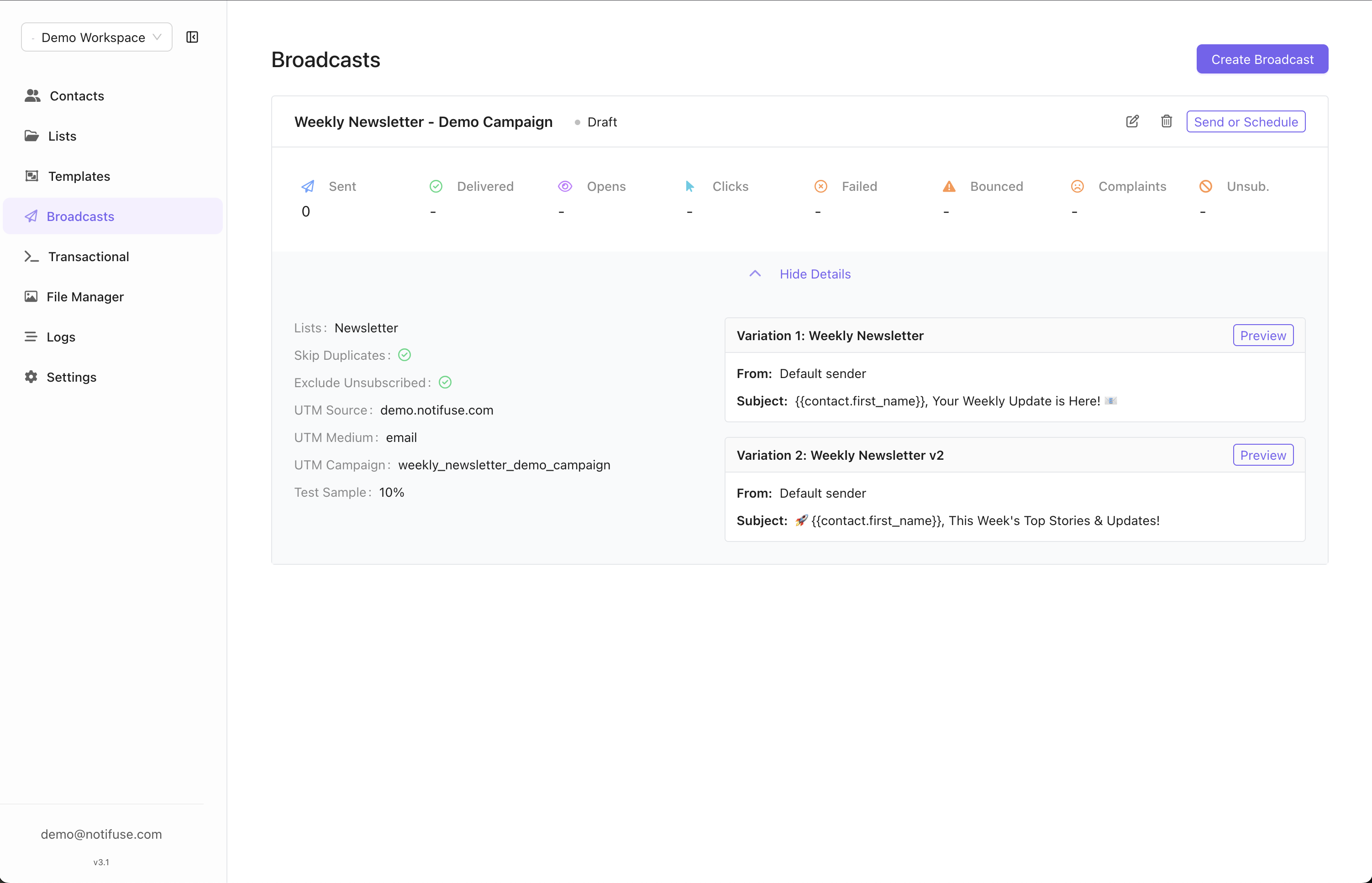
Broadcast campaigns offer flexible audience targeting through a contact list combined with optional dynamic segments, allowing you to reach the right people with precision.
### Select a List
Each broadcast targets exactly one contact list:
* **Single List**: Choose one contact list as your base audience
* **Clear Attribution**: Message history and unsubscribes are tracked per list
* **Simple Model**: No duplicate handling needed since each contact appears once per list
**Example**: Send a product announcement to your "Newsletter Subscribers" list.
### Segment Filters
Apply dynamic segment filters to further refine your broadcast audience based on contact properties and behavior:
* **Property-Based Filtering**: Target contacts by `lifetime_value`, `orders_count`, location, or any custom fields
* **Behavioral Filtering**: Reach contacts based on email engagement (opens, clicks, bounces)
* **Combined Filters**: Use multiple segment conditions with AND/OR logic for precise targeting
* **Real-Time Updates**: Segment membership is evaluated at send time, ensuring accuracy
* **List + Segment**: Combine list selection with segment filters for maximum targeting precision
#### Segment Filter Examples
* **High-Value Customers**: Send to "All Customers" list + segment filter for `lifetime_value >= 1000`
* **Re-engagement**: Target "Newsletter" list + segment for contacts who haven't opened emails in 90 days
* **Geographic Campaigns**: Use "All Contacts" + segment filter for `country = "US"` AND `state = "California"`
* **Purchase Behavior**: Target segments with `orders_count >= 3` to reward loyal customers
**Important**: When both a list and segment filters are applied, only contacts that belong to the selected list AND match the segment criteria will receive the broadcast.
## A/B Testing
Optimize your campaigns by testing different variations with your audience.
### Test Setup
* **Sample Size**: Test variations on a percentage of your total recipients
* **Multiple Variations**: Create different subject lines, content, or templates
* **Control Groups**: Automatically split your test audience evenly
### Winner Selection
#### Manual Selection
* **Review Results**: Analyze performance metrics for each variation
* **Choose Winner**: Manually select the best-performing variation
* **Send to Remaining**: Deploy the winning variation to the rest of your audience
#### Automatic Selection
Configure automatic winner selection based on performance metrics:
**Open Rate Winner**
* **Metric**: Highest email open rate percentage
* **Time Period**: Set a specific duration (e.g., 2 hours, 24 hours)
* **Auto-Deploy**: Automatically send winning variation after the period
**Click Rate Winner**
* **Metric**: Highest click-through rate percentage
* **Time Period**: Set a specific duration for evaluation
* **Auto-Deploy**: Automatically send winning variation after the period
### A/B Testing Example
1. Create campaign with 2 subject line variations
2. Set test sample to 20% of your audience
3. Configure automatic winner selection based on open rate after 4 hours
4. System automatically sends winning variation to remaining 80%
## Audience Targeting
Broadcast campaigns offer flexible audience targeting through a contact list combined with optional dynamic segments, allowing you to reach the right people with precision.
### Select a List
Each broadcast targets exactly one contact list:
* **Single List**: Choose one contact list as your base audience
* **Clear Attribution**: Message history and unsubscribes are tracked per list
* **Simple Model**: No duplicate handling needed since each contact appears once per list
**Example**: Send a product announcement to your "Newsletter Subscribers" list.
### Segment Filters
Apply dynamic segment filters to further refine your broadcast audience based on contact properties and behavior:
* **Property-Based Filtering**: Target contacts by `lifetime_value`, `orders_count`, location, or any custom fields
* **Behavioral Filtering**: Reach contacts based on email engagement (opens, clicks, bounces)
* **Combined Filters**: Use multiple segment conditions with AND/OR logic for precise targeting
* **Real-Time Updates**: Segment membership is evaluated at send time, ensuring accuracy
* **List + Segment**: Combine list selection with segment filters for maximum targeting precision
#### Segment Filter Examples
* **High-Value Customers**: Send to "All Customers" list + segment filter for `lifetime_value >= 1000`
* **Re-engagement**: Target "Newsletter" list + segment for contacts who haven't opened emails in 90 days
* **Geographic Campaigns**: Use "All Contacts" + segment filter for `country = "US"` AND `state = "California"`
* **Purchase Behavior**: Target segments with `orders_count >= 3` to reward loyal customers
**Important**: When both a list and segment filters are applied, only contacts that belong to the selected list AND match the segment criteria will receive the broadcast.
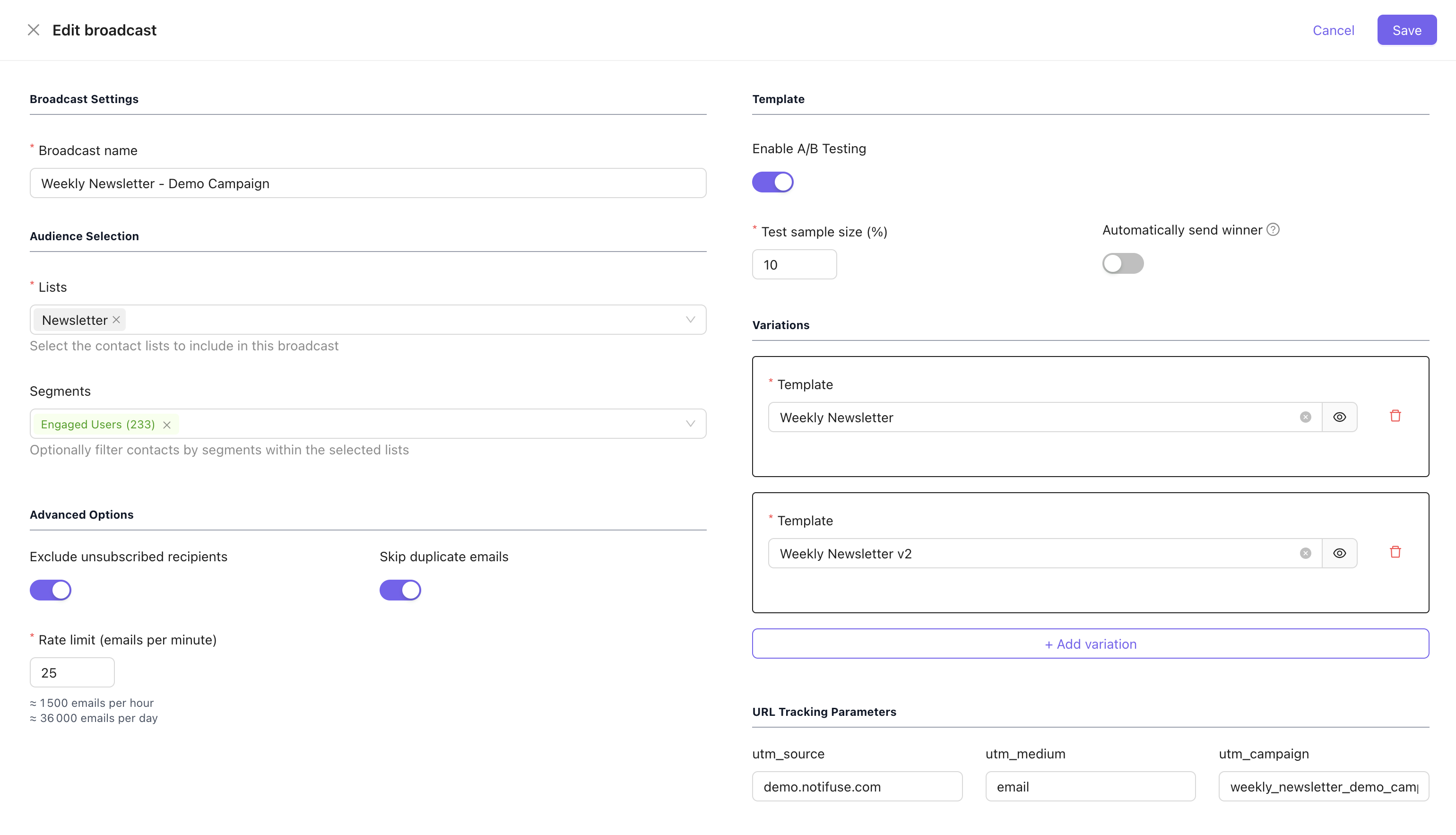
## A/B Testing
Optimize your campaigns by testing different variations with your audience.
### Test Setup
* **Sample Size**: Test variations on a percentage of your total recipients
* **Multiple Variations**: Create different subject lines, content, or templates
* **Control Groups**: Automatically split your test audience evenly
### Winner Selection
#### Manual Selection
* **Review Results**: Analyze performance metrics for each variation
* **Choose Winner**: Manually select the best-performing variation
* **Send to Remaining**: Deploy the winning variation to the rest of your audience
#### Automatic Selection
Configure automatic winner selection based on performance metrics:
**Open Rate Winner**
* **Metric**: Highest email open rate percentage
* **Time Period**: Set a specific duration (e.g., 2 hours, 24 hours)
* **Auto-Deploy**: Automatically send winning variation after the period
**Click Rate Winner**
* **Metric**: Highest click-through rate percentage
* **Time Period**: Set a specific duration for evaluation
* **Auto-Deploy**: Automatically send winning variation after the period
### A/B Testing Example
1. Create campaign with 2 subject line variations
2. Set test sample to 20% of your audience
3. Configure automatic winner selection based on open rate after 4 hours
4. System automatically sends winning variation to remaining 80%
 ## UTM Tracking
### Automatic UTM Parameters
All external links in your email templates automatically receive UTM parameters for comprehensive tracking:
* **utm\_source**: Identifies the email source
* **utm\_medium**: Set to "email" for all broadcast campaigns
* **utm\_campaign**: Uses your campaign name for tracking
* **utm\_content**: Automatically set to the template ID for content identification
### Example UTM Implementation
**Original Link**: `https://yourwebsite.com/products`
**With UTM Parameters**:
```
https://yourwebsite.com/products?utm_source=notifuse&utm_medium=email&utm_campaign=summer_sale_2024
```
### Analytics Integration
* **Google Analytics**: Track email performance in your analytics dashboard
* **Campaign Attribution**: Understand which emails drive website traffic and conversions
* **ROI Measurement**: Calculate campaign effectiveness and return on investment
## Data Feeds
Data feeds allow you to fetch external data from your APIs and use it in your email templates. This enables dynamic, personalized content that goes beyond stored contact properties.
### Global Data Feed
The global data feed fetches data once before the broadcast starts and makes it available to all recipients.
#### Configuration
* **Enable Toggle**: Turn on to activate the global data feed
* **Feed URL**: The HTTPS endpoint that returns JSON data
* **Custom Headers**: Add authentication or custom headers (e.g., `Authorization: Bearer token123`)
#### How It Works
1. When the broadcast starts, Notifuse sends a POST request to your configured URL
2. The request body includes broadcast, list, and workspace information:
```json theme={null}
{
"broadcast": {
"id": "abc123",
"name": "Summer Sale"
},
"list": {
"id": "list456",
"name": "Newsletter Subscribers"
},
"workspace": {
"id": "ws789",
"name": "My Company"
}
}
```
3. Your API should return a JSON object with the data you want to use
4. The data is cached and available in templates as the `global_feed` variable
#### Template Usage
Access global feed data in your templates using the `global_feed` variable:
```liquid theme={null}
{% if global_feed.promotion %}
## UTM Tracking
### Automatic UTM Parameters
All external links in your email templates automatically receive UTM parameters for comprehensive tracking:
* **utm\_source**: Identifies the email source
* **utm\_medium**: Set to "email" for all broadcast campaigns
* **utm\_campaign**: Uses your campaign name for tracking
* **utm\_content**: Automatically set to the template ID for content identification
### Example UTM Implementation
**Original Link**: `https://yourwebsite.com/products`
**With UTM Parameters**:
```
https://yourwebsite.com/products?utm_source=notifuse&utm_medium=email&utm_campaign=summer_sale_2024
```
### Analytics Integration
* **Google Analytics**: Track email performance in your analytics dashboard
* **Campaign Attribution**: Understand which emails drive website traffic and conversions
* **ROI Measurement**: Calculate campaign effectiveness and return on investment
## Data Feeds
Data feeds allow you to fetch external data from your APIs and use it in your email templates. This enables dynamic, personalized content that goes beyond stored contact properties.
### Global Data Feed
The global data feed fetches data once before the broadcast starts and makes it available to all recipients.
#### Configuration
* **Enable Toggle**: Turn on to activate the global data feed
* **Feed URL**: The HTTPS endpoint that returns JSON data
* **Custom Headers**: Add authentication or custom headers (e.g., `Authorization: Bearer token123`)
#### How It Works
1. When the broadcast starts, Notifuse sends a POST request to your configured URL
2. The request body includes broadcast, list, and workspace information:
```json theme={null}
{
"broadcast": {
"id": "abc123",
"name": "Summer Sale"
},
"list": {
"id": "list456",
"name": "Newsletter Subscribers"
},
"workspace": {
"id": "ws789",
"name": "My Company"
}
}
```
3. Your API should return a JSON object with the data you want to use
4. The data is cached and available in templates as the `global_feed` variable
#### Template Usage
Access global feed data in your templates using the `global_feed` variable:
```liquid theme={null}
{% if global_feed.promotion %}
{{ global_feed.promotion.description }}
Shop Now {% endif %} ``` #### Use Cases * **Dynamic Promotions**: Fetch current sale information, discount codes, or featured products * **Real-time Content**: Display live inventory counts, pricing, or availability * **Centralized Data**: Pull content from a CMS or marketing platform ### Per-Recipient Data Feed The per-recipient data feed fetches personalized data for each individual recipient before sending their email. #### Configuration * **Enable Toggle**: Turn on to activate the per-recipient data feed * **Feed URL**: The HTTPS endpoint that returns JSON data (must use HTTPS) * **Custom Headers**: Add authentication or custom headers #### How It Works 1. Before sending each email, Notifuse sends a POST request to your configured URL 2. The request body includes contact, broadcast, list, and workspace information: ```json theme={null} { "contact": { "email": "john@example.com", "external_id": "user_789", "timezone": "America/New_York", "language": "en", "first_name": "John", "last_name": "Doe", "full_name": "John Doe", "phone": "+1234567890", "address_line_1": "123 Main St", "address_line_2": "Apt 4B", "country": "US", "postcode": "10001", "state": "NY", "job_title": "Engineer", "custom_string_1": "value", "custom_number_1": 42, "custom_datetime_1": "2024-06-15T00:00:00Z", "custom_json_1": {"key": "value"}, "created_at": "2024-01-15T10:30:00Z", "updated_at": "2024-06-01T14:00:00Z" }, "broadcast": { "id": "abc123", "name": "Summer Sale" }, "list": { "id": "list456", "name": "Newsletter Subscribers" }, "workspace": { "id": "ws789", "name": "My Company" } } ``` All contact fields are included when populated. Empty fields are omitted. Custom fields (`custom_string_1` through `custom_string_5`, `custom_number_1` through `custom_number_5`, `custom_datetime_1` through `custom_datetime_5`, `custom_json_1` through `custom_json_5`) are included when set on the contact. 3. Your API should return a JSON object with personalized data for that contact 4. The data is available in templates as the `recipient_feed` variable #### Template Usage Access per-recipient feed data using the `recipient_feed` variable: ```liquid theme={null} {% if recipient_feed.recommendations %}{{ product.name }} - ${{ product.price }}