> ## Documentation Index
> Fetch the complete documentation index at: https://docs.notifuse.com/llms.txt
> Use this file to discover all available pages before exploring further.
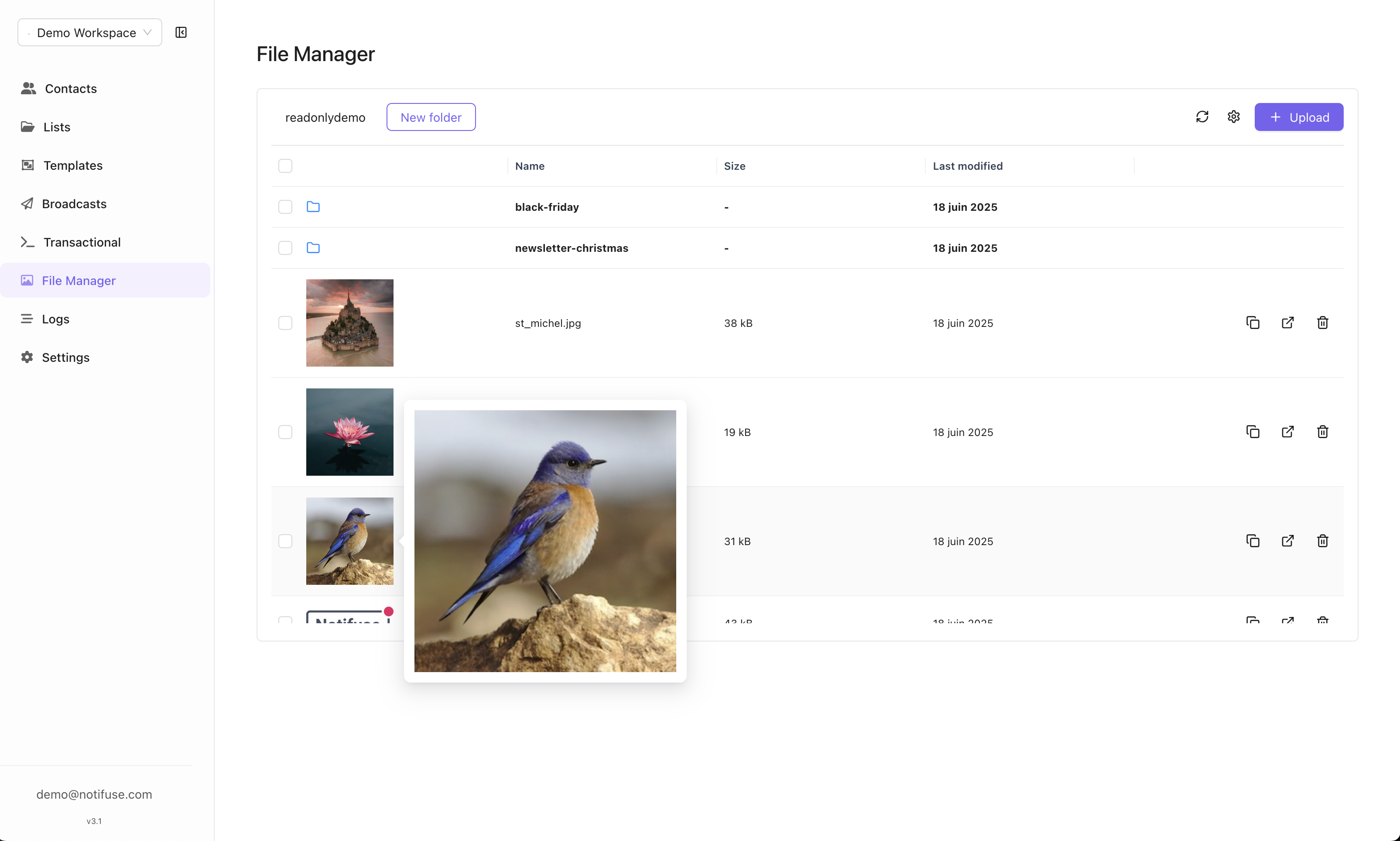
# File Manager
> The file manager connects to your S3-compatible bucket to store and serve files and images used in your email templates. You can optionally configure a CDN endpoint to customize S3 URLs for better performance.
 ## S3 Storage Configuration
Configure your S3-compatible storage with these settings:
* **S3 Endpoint**: Your S3-compatible storage endpoint URL
* **S3 Access Key**: Access key for authentication
* **S3 Secret Key**: Secret key for authentication
* **S3 Bucket**: Bucket name where files will be stored
* **S3 Region**: Storage region (e.g., us-east-1)
## CDN Configuration
### CDN Endpoint
* **Purpose**: URL of the CDN that caches your files
* **Benefit**: Faster file delivery and reduced bandwidth costs
* **Optional**: CDN configuration is not required but recommended
### URL Customization
When a CDN endpoint is configured, file URLs in your email templates will use the CDN URL instead of the direct S3 URL for optimized delivery.
## CORS Configuration
To allow the file manager to upload files directly from your browser, you need to configure CORS (Cross-Origin Resource Sharing) on your storage bucket.
### Cloudflare R2 / AWS S3
Create a CORS policy with the following configuration:
```json theme={null}
[
{
"AllowedOrigins": ["*"],
"AllowedMethods": ["GET", "POST", "HEAD", "DELETE", "PUT"],
"AllowedHeaders": ["*"]
}
]
```
For production, replace `"*"` in `AllowedOrigins` with your Notifuse console URL for better security.
### Google Cloud Storage
For GCS, use the `gsutil` command with a JSON configuration file:
```json theme={null}
[
{
"origin": ["*"],
"method": ["GET", "POST", "HEAD", "PUT", "DELETE", "OPTIONS"],
"responseHeader": ["Content-Type", "*"]
}
]
```
Apply the CORS configuration:
```bash theme={null}
gsutil cors set cors.json gs://your-bucket-name
```
## Supported Storage Providers
Files can be uploaded to any S3-compatible storage service:
* Amazon S3
* Cloudflare R2
* DigitalOcean Spaces
* Wasabi
* MinIO
* Backblaze B2
* Google Cloud Storage (S3 API)
## Self-Hosted S3 Option
If you prefer not to use cloud storage providers, you can run your own S3-compatible storage server using our self-hosted solution:
A lightweight, Docker-based S3-compatible storage server perfect for self-hosting Notifuse without external dependencies.
This option is ideal for:
* Air-gapped or offline environments
* Development and testing
* Users who want full control over their data
* Avoiding cloud provider costs
## File Usage
Once configured, uploaded files can be used in:
* Email template images
* Attachments
* Brand assets (logos, headers)
* Any media content in your email campaigns
## Template Editor Integration
The visual email editor provides seamless access to your file manager:
* **Modal Access**: File manager opens in a modal while creating templates
* **Direct Integration**: Select and insert files directly from the editor
* **Real-Time Upload**: Upload new files without leaving the template editor
## S3 Storage Configuration
Configure your S3-compatible storage with these settings:
* **S3 Endpoint**: Your S3-compatible storage endpoint URL
* **S3 Access Key**: Access key for authentication
* **S3 Secret Key**: Secret key for authentication
* **S3 Bucket**: Bucket name where files will be stored
* **S3 Region**: Storage region (e.g., us-east-1)
## CDN Configuration
### CDN Endpoint
* **Purpose**: URL of the CDN that caches your files
* **Benefit**: Faster file delivery and reduced bandwidth costs
* **Optional**: CDN configuration is not required but recommended
### URL Customization
When a CDN endpoint is configured, file URLs in your email templates will use the CDN URL instead of the direct S3 URL for optimized delivery.
## CORS Configuration
To allow the file manager to upload files directly from your browser, you need to configure CORS (Cross-Origin Resource Sharing) on your storage bucket.
### Cloudflare R2 / AWS S3
Create a CORS policy with the following configuration:
```json theme={null}
[
{
"AllowedOrigins": ["*"],
"AllowedMethods": ["GET", "POST", "HEAD", "DELETE", "PUT"],
"AllowedHeaders": ["*"]
}
]
```
For production, replace `"*"` in `AllowedOrigins` with your Notifuse console URL for better security.
### Google Cloud Storage
For GCS, use the `gsutil` command with a JSON configuration file:
```json theme={null}
[
{
"origin": ["*"],
"method": ["GET", "POST", "HEAD", "PUT", "DELETE", "OPTIONS"],
"responseHeader": ["Content-Type", "*"]
}
]
```
Apply the CORS configuration:
```bash theme={null}
gsutil cors set cors.json gs://your-bucket-name
```
## Supported Storage Providers
Files can be uploaded to any S3-compatible storage service:
* Amazon S3
* Cloudflare R2
* DigitalOcean Spaces
* Wasabi
* MinIO
* Backblaze B2
* Google Cloud Storage (S3 API)
## Self-Hosted S3 Option
If you prefer not to use cloud storage providers, you can run your own S3-compatible storage server using our self-hosted solution:
A lightweight, Docker-based S3-compatible storage server perfect for self-hosting Notifuse without external dependencies.
This option is ideal for:
* Air-gapped or offline environments
* Development and testing
* Users who want full control over their data
* Avoiding cloud provider costs
## File Usage
Once configured, uploaded files can be used in:
* Email template images
* Attachments
* Brand assets (logos, headers)
* Any media content in your email campaigns
## Template Editor Integration
The visual email editor provides seamless access to your file manager:
* **Modal Access**: File manager opens in a modal while creating templates
* **Direct Integration**: Select and insert files directly from the editor
* **Real-Time Upload**: Upload new files without leaving the template editor