> ## Documentation Index
> Fetch the complete documentation index at: https://docs.notifuse.com/llms.txt
> Use this file to discover all available pages before exploring further.
# Templates
> Templates in Notifuse are the foundation of your email design system. They provide reusable, responsive email layouts that can be personalized with dynamic content using Liquid templating and built with MJML components for perfect cross-client compatibility.
 ## Overview
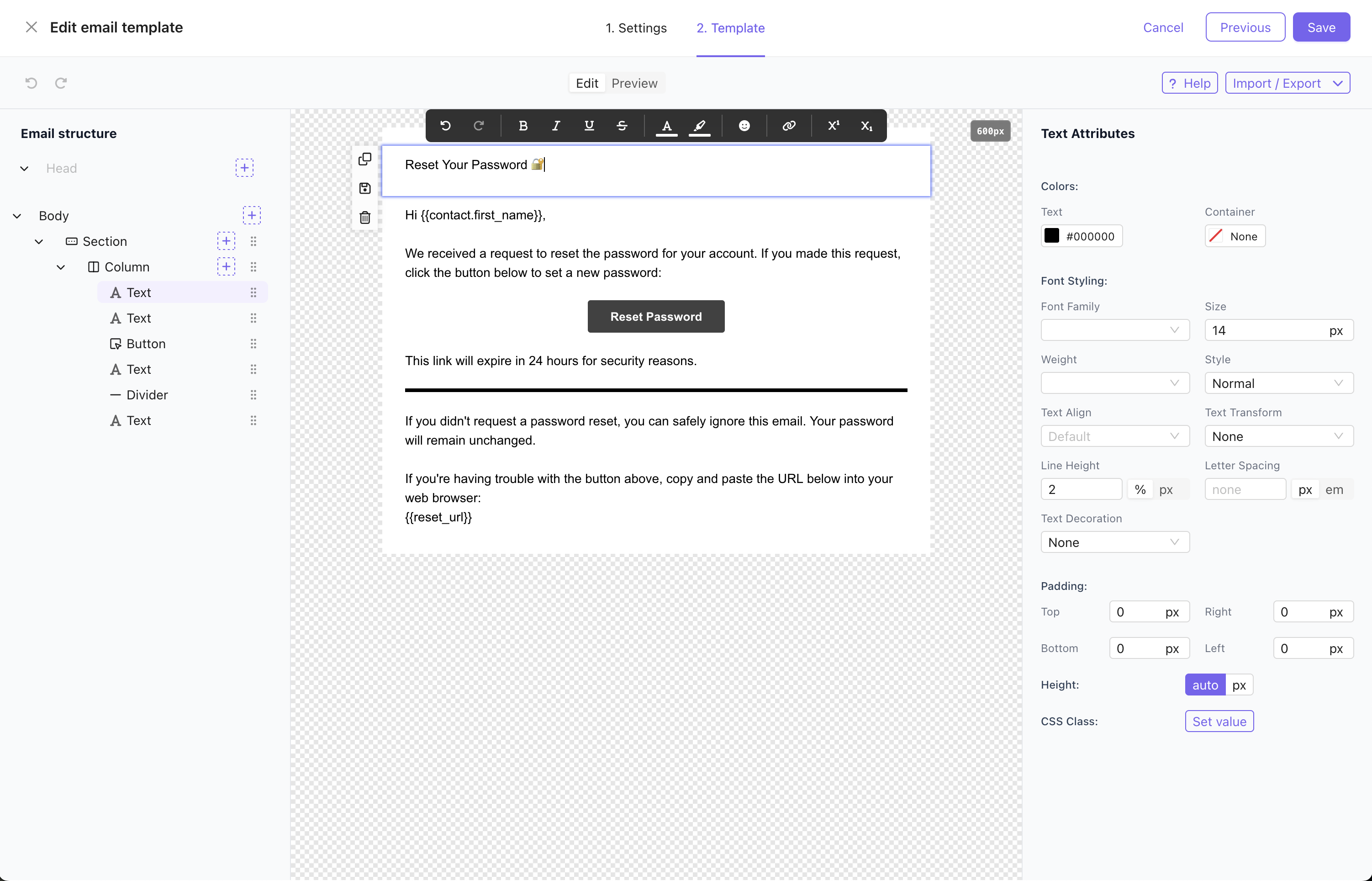
Email templates in Notifuse are built using a **visual drag-and-drop editor** that combines:
* **MJML Framework**: Guarantees full email client compatibility across all devices and email providers
* **Liquid Templating**: Dynamic content personalization using variables like `{{ contact.first_name }}`
* **Version Control**: Every template update creates a new version to track previously sent contents
* **Multi-Purpose**: Used by both broadcast campaigns and transactional notifications
## Template Builder Features
* **Drag-and-Drop Interface**: Visual editor for easy template creation
* **Responsive Design**: Mobile-optimized layouts that work across all devices
* **Pre-built Blocks**: Headers, footers, buttons, images, and content sections
* **Brand Consistency**: Colors, fonts, logos, and styling options
* **Real-time Preview**: See exactly how your email will look before sending
## Usage
Templates are used across Notifuse for:
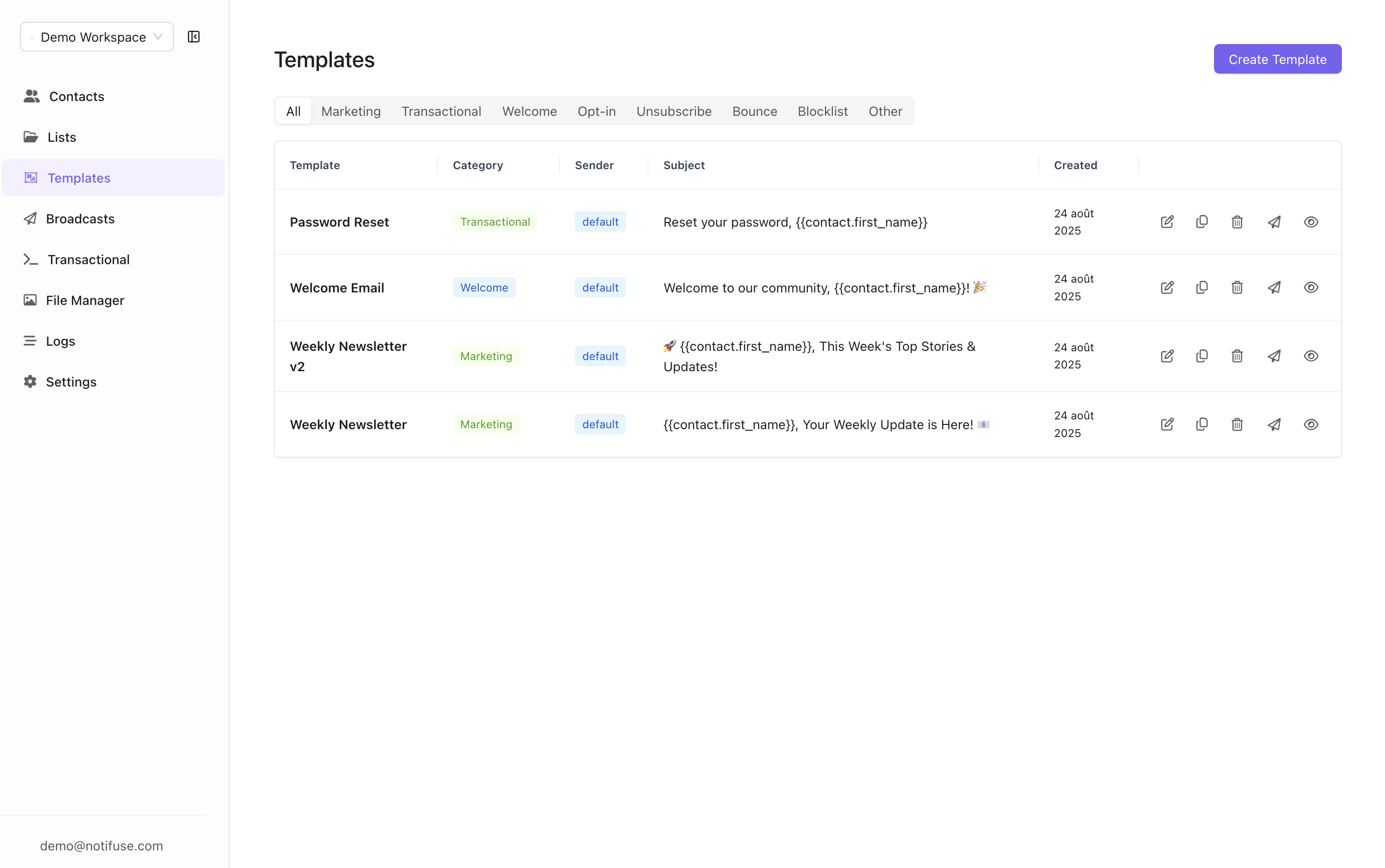
* **Broadcast Campaigns**: Mass email campaigns sent to your contact lists
* **Transactional Notifications**: Automated emails triggered by user actions
* **Double Opt-In Emails**: Sent when anonymous contacts subscribe to lists
* **Welcome Emails**: Sent when contacts confirm their subsription to lists
* **Unsubscribe Confirmations**: Sent when contacts opt out
## Overview
Email templates in Notifuse are built using a **visual drag-and-drop editor** that combines:
* **MJML Framework**: Guarantees full email client compatibility across all devices and email providers
* **Liquid Templating**: Dynamic content personalization using variables like `{{ contact.first_name }}`
* **Version Control**: Every template update creates a new version to track previously sent contents
* **Multi-Purpose**: Used by both broadcast campaigns and transactional notifications
## Template Builder Features
* **Drag-and-Drop Interface**: Visual editor for easy template creation
* **Responsive Design**: Mobile-optimized layouts that work across all devices
* **Pre-built Blocks**: Headers, footers, buttons, images, and content sections
* **Brand Consistency**: Colors, fonts, logos, and styling options
* **Real-time Preview**: See exactly how your email will look before sending
## Usage
Templates are used across Notifuse for:
* **Broadcast Campaigns**: Mass email campaigns sent to your contact lists
* **Transactional Notifications**: Automated emails triggered by user actions
* **Double Opt-In Emails**: Sent when anonymous contacts subscribe to lists
* **Welcome Emails**: Sent when contacts confirm their subsription to lists
* **Unsubscribe Confirmations**: Sent when contacts opt out
 ## Liquid Syntax
Notifuse uses Liquid templating to insert dynamic content into your emails. Variables are enclosed in double curly braces and automatically replaced with actual data when emails are sent.
### Contact Variables
The `contact` object contains the **full contact profile** with all stored information. Access any contact field for personalization:
```liquid theme={null}
Hello {{ contact.first_name }}!
Your account email: {{ contact.email }}
Full name: {{ contact.first_name }} {{ contact.last_name }}
```
**Output Example:**
```
Hello John!
Your account email: john.doe@example.com
Full name: John Doe
```
### List Variables
Reference the mailing list information:
```liquid theme={null}
You're subscribed to: {{ list.name }}
List ID: {{ list.id }}
```
**Output Example:**
```
You're subscribed to: Newsletter
List ID: newsletter
```
### System URLs
Use pre-generated URLs for common actions:
#### Unsubscribe Link
```liquid theme={null}
Unsubscribe from this list
```
#### Subscription Confirmation
```liquid theme={null}
Confirm your subscription
```
#### Notification Center
```liquid theme={null}
Manage your preferences
```
### Complete Example
```liquid theme={null}
Welcome {{ contact.first_name }}!
Thank you for subscribing to {{ list.name }}. We're excited to have you on board!
Your registered email: {{ contact.email }}
Manage Preferences: {{ notification_center_url }}
Don't want to receive these emails?
Unsubscribe here: {{ unsubscribe_url }}
```
### Available Data Structure
When designing templates, you have access to this data structure:
```json theme={null}
{
"contact": {
"first_name": "John",
"last_name": "Doe",
"email": "john.doe@example.com"
},
"list": {
"id": "newsletter",
"name": "Newsletter"
},
"unsubscribe_url": "https://your_notifuse_endpoint.your_website.com/notification-center?action=unsubscribe&email=john.doe@example.com&lid=newsletter&lname=Newsletter&wid=workspace123&mid=msg_123&email_hmac=abc123",
"confirm_subscription_url": "https://your_notifuse_endpoint.your_website.com/notification-center?action=confirm&email=john.doe@example.com&lid=newsletter&lname=Newsletter&wid=workspace123&mid=msg_123&email_hmac=abc123",
"notification_center_url": "https://your_notifuse_endpoint.your_website.com/notification-center?email=john.doe@example.com&email_hmac=abc123&wid=workspace123"
}
```
## Liquid Syntax
Notifuse uses Liquid templating to insert dynamic content into your emails. Variables are enclosed in double curly braces and automatically replaced with actual data when emails are sent.
### Contact Variables
The `contact` object contains the **full contact profile** with all stored information. Access any contact field for personalization:
```liquid theme={null}
Hello {{ contact.first_name }}!
Your account email: {{ contact.email }}
Full name: {{ contact.first_name }} {{ contact.last_name }}
```
**Output Example:**
```
Hello John!
Your account email: john.doe@example.com
Full name: John Doe
```
### List Variables
Reference the mailing list information:
```liquid theme={null}
You're subscribed to: {{ list.name }}
List ID: {{ list.id }}
```
**Output Example:**
```
You're subscribed to: Newsletter
List ID: newsletter
```
### System URLs
Use pre-generated URLs for common actions:
#### Unsubscribe Link
```liquid theme={null}
Unsubscribe from this list
```
#### Subscription Confirmation
```liquid theme={null}
Confirm your subscription
```
#### Notification Center
```liquid theme={null}
Manage your preferences
```
### Complete Example
```liquid theme={null}
Welcome {{ contact.first_name }}!
Thank you for subscribing to {{ list.name }}. We're excited to have you on board!
Your registered email: {{ contact.email }}
Manage Preferences: {{ notification_center_url }}
Don't want to receive these emails?
Unsubscribe here: {{ unsubscribe_url }}
```
### Available Data Structure
When designing templates, you have access to this data structure:
```json theme={null}
{
"contact": {
"first_name": "John",
"last_name": "Doe",
"email": "john.doe@example.com"
},
"list": {
"id": "newsletter",
"name": "Newsletter"
},
"unsubscribe_url": "https://your_notifuse_endpoint.your_website.com/notification-center?action=unsubscribe&email=john.doe@example.com&lid=newsletter&lname=Newsletter&wid=workspace123&mid=msg_123&email_hmac=abc123",
"confirm_subscription_url": "https://your_notifuse_endpoint.your_website.com/notification-center?action=confirm&email=john.doe@example.com&lid=newsletter&lname=Newsletter&wid=workspace123&mid=msg_123&email_hmac=abc123",
"notification_center_url": "https://your_notifuse_endpoint.your_website.com/notification-center?email=john.doe@example.com&email_hmac=abc123&wid=workspace123"
}
```