> ## Documentation Index
> Fetch the complete documentation index at: https://docs.notifuse.com/llms.txt
> Use this file to discover all available pages before exploring further.
# Self-hosted Installation
> How to self-host Notifuse
**Looking for a managed solution?** [Notifuse Cloud](https://cloud.notifuse.com) takes care of hosting, security, backups, updates, and maintenance for you — starting from **\$16/month**.
## Getting started
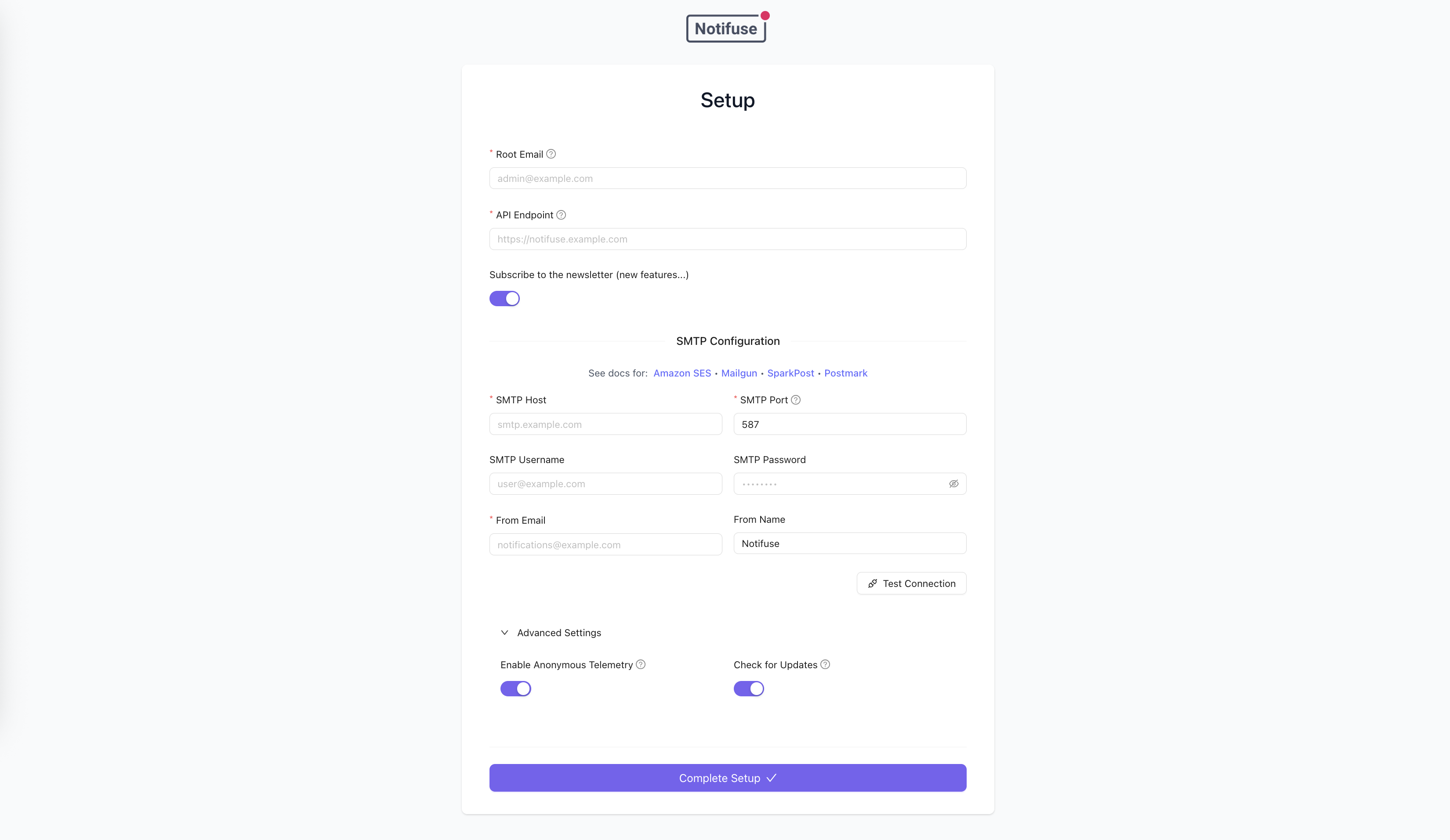
Notifuse includes an interactive **Setup Wizard** that makes installation easy. Many environment variables are optional and can be configured through the web interface on first launch.
 ### Quick Start with Setup Wizard
1. Deploy Notifuse using one of the options below
2. Access your instance in a web browser
3. Complete the Setup Wizard:
* Enter your root administrator email
* Configure your API endpoint
* Set up SMTP settings
4. Start using Notifuse!
### Option 1: Docker Compose (Recommended for testing)
This option includes an embedded PostgreSQL database for easy testing and development:
```bash theme={null}
# Clone the repository (the compose.yaml builds from the included Dockerfile)
git clone https://github.com/notifuse/notifuse.git
cd notifuse
# Start Notifuse with embedded PostgreSQL
docker compose up -d
```
This will start Notifuse on port `8081` with a PostgreSQL database.
On first launch, you'll be guided through the Setup Wizard to configure your instance. Alternatively, you can configure [environment variables](#environment-variables) in a `.env` file or directly in the `compose.yaml`.
### Option 2: Standalone Docker (Production)
For production deployments, use the standalone Docker image with your own PostgreSQL database:
```bash theme={null}
docker run -d --name notifuse -p 8080:8080 notifuse/notifuse:latest
```
On first launch, you'll be guided through the Setup Wizard to configure your instance. Alternatively, you can configure [environment variables](#environment-variables).
**Note**: You'll need to provide your own PostgreSQL database.
### PostgreSQL database (Option 2 only)
If using the standalone Docker option, you can use any PostgreSQL database **with root credentials**. Notifuse automatically creates a system database for itself.
**Recommended version**: PostgreSQL 17 or higher
A new database will be created for each Notifuse workspace to avoid multi-tenant issues (that's why you need root credentials).
**Note**: This is not required when using Docker Compose as PostgreSQL is included.
### An SMTP server
Notifuse needs an SMTP server to send system emails (e.g. password reset emails, invitation emails, etc.).
If using SES, you can create SMTP credentials in the SMTP settings section of the SES dashboard.
### A public API endpoint
Notifuse needs a public API endpoint to be accessible from the web. Example: `https://emails.yourcompany.com`
## Environment Variables
With the Setup Wizard, many environment variables are optional and can be configured through the web interface. Environment variables always take precedence over database settings when present.
**Special Characters in .env Files**
If you're using a `.env` file and any of your values contain the `#` character (common in passwords), you **must** wrap the value in quotes:
```bash theme={null}
# ✅ CORRECT - value is quoted
DB_PASSWORD="mypass#word123"
SECRET_KEY="abc123#xyz789"
# ❌ INCORRECT - will be truncated at the # character
DB_PASSWORD=mypass#word123 # parsed as "mypass"
SECRET_KEY=abc123#xyz789 # parsed as "abc123"
```
This limitation only applies to `.env` files. Environment variables set directly in your shell, Docker Compose, or container orchestration platform do not have this restriction.
### Required Variables
| Variable | Description |
| ------------- | ----------------------------------------------------------- |
| `DB_HOST` | PostgreSQL host (e.g., `localhost` or `db.yourcompany.com`) |
| `DB_PORT` | PostgreSQL port (e.g., `5432`) |
| `DB_USER` | Database username (e.g., `postgres`) |
| `DB_PASSWORD` | Database password (e.g., `postgres`) |
| `SECRET_KEY` | Secret key for encryption (generate with command below) |
**Generate SECRET\_KEY:**
```bash theme={null}
openssl rand -base64 32
```
**IMPORTANT**: Never change your `SECRET_KEY` after initial setup. It encrypts all workspace
integration secrets (email provider API keys, SMTP passwords, etc.). Changing it will permanently
destroy all encrypted credentials.
### Application Variables (Optional with Setup Wizard)
These variables can be configured via the Setup Wizard on first launch, or set as environment variables. Environment variables always override wizard settings.
| Variable | Description |
| -------------------- | ------------------------------------------------------------------------------------------------------------------------------------------------------------------ |
| `ROOT_EMAIL` | Root administrator email (e.g., `admin@yourcompany.com`) |
| `API_ENDPOINT` | Public API endpoint URL (e.g., `https://emails.yourcompany.com`) |
| `SMTP_HOST` | SMTP server host (e.g., `smtp.gmail.com`) |
| `SMTP_PORT` | SMTP server port (e.g., `587` or `465`) |
| `SMTP_USERNAME` | SMTP username (e.g., `noreply@yourcompany.com`) |
| `SMTP_PASSWORD` | SMTP password (e.g., `your_smtp_password`) |
| `SMTP_FROM_EMAIL` | From email address (e.g., `noreply@yourcompany.com`) |
| `SMTP_FROM_NAME` | From name (e.g., `Your Company Name`) |
| `SMTP_EHLO_HOSTNAME` | Custom EHLO hostname for SMTP connections (e.g., `mail.yourdomain.com`). Defaults to SMTP host value when empty. Useful when SMTP servers reject `EHLO localhost`. |
### Optional Variables
| Variable | Description | Default |
| ----------------------------------- | ----------------------------------------------------------------------------------------- | ------------------------------------ |
| | | |
| **Server Configuration** | | |
| `SERVER_PORT` | Port for the server to listen on (e.g., `8080`) | `8080` |
| `SERVER_HOST` | Host address to bind to (e.g., `0.0.0.0`) | `0.0.0.0` |
| `CORS_ALLOW_ORIGIN` | CORS allowed origins (e.g., `https://yourapp.com,https://admin.yourapp.com`) | `*` |
| `ENVIRONMENT` | Environment mode (e.g., `production`) | `production` |
| `LOG_LEVEL` | Logging level (e.g., `debug` or `warn`) | `info` |
| | | |
| **Database Configuration** | | |
| `DB_PREFIX` | Database table prefix (e.g., `notifuse`) | `notifuse` |
| `DB_NAME` | Database name (e.g., `notifuse_system`) | `${DB_PREFIX}_system` |
| `DB_SSLMODE` | SSL mode for database (e.g., `require` or `disable`) | `require` |
| `DB_MAX_CONNECTIONS` | Total max connections across all databases (e.g., `100`) | `100` |
| `DB_MAX_CONNECTIONS_PER_DB` | Max connections per workspace database (e.g., `3`) | `3` |
| `DB_CONNECTION_MAX_LIFETIME` | Maximum lifetime of a connection (e.g., `10m`) | `10m` |
| `DB_CONNECTION_MAX_IDLE_TIME` | Maximum idle time before closing connection (e.g., `5m`) | `5m` |
| | | |
| **Task Scheduler Configuration** | | |
| `TASK_SCHEDULER_ENABLED` | Enable internal task scheduler (e.g., `true` or `false`) | `true` |
| `TASK_SCHEDULER_INTERVAL` | Task execution interval in seconds (e.g., `30`) | `30` |
| `TASK_SCHEDULER_MAX_TASKS` | Maximum concurrent tasks (e.g., `10`) | `10` |
| | | |
| **Privacy Settings** | | |
| `TELEMETRY` | Send anonymous usage statistics (e.g., `true` or `false`) | `true` |
| `CHECK_FOR_UPDATES` | Check for new versions (e.g., `true` or `false`) | `true` |
| | | |
| **SMTP Bridge Configuration** | | |
| `SMTP_BRIDGE_ENABLED` | Enable SMTP bridge server for transactional emails (e.g., `true` or `false`) | `false` |
| `SMTP_BRIDGE_PORT` | SMTP bridge port (e.g., `587` for STARTTLS, `465` for implicit TLS) | `587` |
| `SMTP_BRIDGE_DOMAIN` | Public domain name for SMTP bridge (e.g., `smtp.yourdomain.com`) | `localhost` |
| `SMTP_BRIDGE_TLS` | TLS posture: `starttls`, `implicit`, or `off` (see below). Auto-resolves when unset. | auto |
| `SMTP_BRIDGE_TLS_CERT_BASE64` | Base64-encoded TLS certificate (required for `starttls` and `implicit`) | - |
| `SMTP_BRIDGE_TLS_KEY_BASE64` | Base64-encoded TLS private key (required for `starttls` and `implicit`) | - |
| | | |
| **Tracing Configuration** | | |
| `TRACING_ENABLED` | Enable tracing (e.g., `true`) | `false` |
| `TRACING_SERVICE_NAME` | Service name for tracing (e.g., `notifuse-production`) | `notifuse-api` |
| `TRACING_SAMPLING_PROBABILITY` | Sampling probability (e.g., `0.05`) | `0.1` |
| `TRACING_TRACE_EXPORTER` | Trace exporter: jaeger/zipkin/stackdriver/datadog/xray/none (e.g., `jaeger` or `datadog`) | `none` |
| `TRACING_JAEGER_ENDPOINT` | Jaeger endpoint (e.g., `http://jaeger:14268/api/traces`) | `http://localhost:14268/api/traces` |
| `TRACING_ZIPKIN_ENDPOINT` | Zipkin endpoint (e.g., `http://zipkin:9411/api/v2/spans`) | `http://localhost:9411/api/v2/spans` |
| `TRACING_STACKDRIVER_PROJECT_ID` | Stackdriver project ID (e.g., `my-gcp-project-id`) | - |
| `TRACING_AZURE_INSTRUMENTATION_KEY` | Azure Monitor instrumentation key (e.g., `12345678-1234-1234-1234-123456789012`) | - |
| `TRACING_DATADOG_AGENT_ADDRESS` | Datadog agent address (e.g., `datadog-agent:8126`) | `localhost:8126` |
| `TRACING_DATADOG_API_KEY` | Datadog API key (e.g., `1234567890abcdef1234567890abcdef`) | - |
| `TRACING_XRAY_REGION` | AWS X-Ray region (e.g., `us-east-1`) | `us-west-2` |
| `TRACING_AGENT_ENDPOINT` | General agent endpoint (e.g., `monitoring-agent:8126`) | `localhost:8126` |
| `TRACING_METRICS_EXPORTER` | Metrics exporter: stackdriver/prometheus/datadog/none (e.g., `prometheus`) | `none` |
| `TRACING_PROMETHEUS_PORT` | Prometheus metrics port (e.g., `9464`) | `9464` |
## SMTP Bridge Configuration
The SMTP Bridge feature allows you to connect SaaS applications that only provide SMTP integration (like Supabase Auth, Firebase, Auth0, etc.) to Notifuse. This gives you full control over email designs and branding using Notifuse's MJML editor, instead of being stuck with default SaaS templates.
See [SMTP Bridge usage documentation](/concepts/transactional-api#smtp-bridge) for examples of how to send emails once configured.
### TLS Modes
The bridge supports three TLS postures via `SMTP_BRIDGE_TLS`:
| Mode | Description | Typical port |
| ---------- | --------------------------------------------------------------------------------------------------------------------------------------------- | ------------ |
| `starttls` | Listens plaintext; clients must upgrade via `STARTTLS` before `AUTH`. Default when certs are provided. | `587` |
| `implicit` | TLS-from-byte-1 (SMTPS). Required for clients that only speak implicit TLS. | `465` |
| `off` | No TLS. Only safe when fronted by a TLS-terminating reverse proxy (HAProxy, Caddy layer4, stunnel, nginx Mail, Postfix) on a trusted network. | any |
When `SMTP_BRIDGE_TLS` is unset, Notifuse picks `starttls` if both cert and key are provided, otherwise `off` in development.
In production (`ENVIRONMENT=production`), the bridge refuses to start without TLS configured. You must either provide `SMTP_BRIDGE_TLS_CERT_BASE64` and `SMTP_BRIDGE_TLS_KEY_BASE64`, or explicitly set `SMTP_BRIDGE_TLS=off` if you're running behind a TLS-terminating reverse proxy.
### Production Setup with Let's Encrypt
For production deployments, use valid TLS certificates from Let's Encrypt using certbot with DNS challenges.
#### Step 1: Install Certbot
```bash theme={null}
# Ubuntu/Debian
sudo apt-get update
sudo apt-get install certbot
# macOS
brew install certbot
# CentOS/RHEL
sudo yum install certbot
```
#### Step 2: Generate Certificate with DNS Challenge
DNS challenge is recommended because it doesn't require opening port 80 or 443, and works even if your SMTP server is on a different port.
```bash theme={null}
# Generate certificate using DNS challenge
sudo certbot certonly \
--manual \
--preferred-challenges dns \
--email admin@yourdomain.com \
--agree-tos \
-d smtp.yourdomain.com
```
When prompted, certbot will ask you to create a DNS TXT record:
```
Please deploy a DNS TXT record under the name
_acme-challenge.smtp.yourdomain.com with the following value:
XyZ123AbC456...
Before continuing, verify the record is deployed by running:
dig -t txt _acme-challenge.smtp.yourdomain.com
```
#### Step 3: Add DNS TXT Record
Add the TXT record to your DNS provider:
```
Type: TXT
Name: _acme-challenge.smtp
Value: XyZ123AbC456... (the value provided by certbot)
TTL: 300 (5 minutes)
```
Wait a few minutes for DNS propagation, verify with:
```bash theme={null}
dig -t txt _acme-challenge.smtp.yourdomain.com
# Or using nslookup
nslookup -type=TXT _acme-challenge.smtp.yourdomain.com
```
Press Enter in certbot to continue once the record is verified.
#### Step 4: Encode Certificates to Base64
After certbot successfully generates the certificates, encode them to base64:
```bash theme={null}
# Certificate location (typically):
# Certificate: /etc/letsencrypt/live/smtp.yourdomain.com/fullchain.pem
# Private Key: /etc/letsencrypt/live/smtp.yourdomain.com/privkey.pem
# Encode certificate to base64 (single line)
sudo cat /etc/letsencrypt/live/smtp.yourdomain.com/fullchain.pem | base64 -w 0 > cert_base64.txt
# Encode private key to base64 (single line)
sudo cat /etc/letsencrypt/live/smtp.yourdomain.com/privkey.pem | base64 -w 0 > key_base64.txt
# On macOS, omit the -w flag:
sudo cat /etc/letsencrypt/live/smtp.yourdomain.com/fullchain.pem | base64 > cert_base64.txt
sudo cat /etc/letsencrypt/live/smtp.yourdomain.com/privkey.pem | base64 > key_base64.txt
```
#### Step 5: Add to Environment Variables
Copy the base64-encoded values to your `.env` file:
```bash theme={null}
SMTP_BRIDGE_ENABLED=true
SMTP_BRIDGE_DOMAIN=smtp.yourdomain.com
SMTP_BRIDGE_PORT=587
SMTP_BRIDGE_TLS=starttls
SMTP_BRIDGE_TLS_CERT_BASE64=""
SMTP_BRIDGE_TLS_KEY_BASE64=""
```
Certbot automatically sets up a renewal cron job. After certificate renewal, you'll need to
re-encode the certificates to base64 and update your environment variables.
### Development Setup with Self-Signed Certificates
For local development, you can use self-signed certificates:
```bash theme={null}
# Using the provided script
./scripts/generate-dev-certs.sh localapi.notifuse.com
# Or manually with openssl
openssl req -x509 -newkey rsa:2048 \
-keyout dev-cert.key.pem \
-out dev-cert.cert.pem \
-days 365 -nodes \
-subj "/CN=localhost" \
-addext "subjectAltName=DNS:localhost,IP:127.0.0.1"
# Encode to base64
cat dev-cert.cert.pem | base64 > cert_base64.txt
cat dev-cert.key.pem | base64 > key_base64.txt
```
**⚠️ Warning**: Self-signed certificates are for development only. Never use them in production!
## Configuration Management
**Setup Wizard vs Environment Variables**
* **Setup Wizard**: Ideal for quick deployments and testing. Configuration is stored securely in the database and can be managed through the web interface.
* **Environment Variables**: Recommended for production deployments. Provides better security for sensitive data and allows configuration management through your deployment pipeline.
* **Priority**: Environment variables always take precedence over database settings when both are present.
**For Production Deployments**: We recommend using environment variables for sensitive configuration (SMTP credentials, SECRET\_KEY) and the Setup Wizard or admin interface for non-sensitive settings (API endpoint, etc.).
## Programmatic Authentication
For CI/CD pipelines and automated deployments, the root user can authenticate programmatically using HMAC-SHA256 signature, bypassing magic link authentication.
```bash theme={null}
#!/bin/bash
# Configuration
NOTIFUSE_URL="https://your-notifuse-instance.com"
SECRET_KEY="your-secret-key"
ROOT_EMAIL="admin@example.com"
TIMESTAMP=$(date +%s)
# Generate HMAC signature
MESSAGE="${ROOT_EMAIL}:${TIMESTAMP}"
SIGNATURE=$(echo -n "$MESSAGE" | openssl dgst -sha256 -hmac "$SECRET_KEY" | awk '{print $2}')
# Authenticate and get JWT token
curl -X POST "${NOTIFUSE_URL}/api/user.rootSignin" \
-H "Content-Type: application/json" \
-d "{\"email\":\"${ROOT_EMAIL}\",\"timestamp\":${TIMESTAMP},\"signature\":\"${SIGNATURE}\"}"
```
The endpoint returns a JWT token for subsequent API requests. Timestamps must be within 60 seconds of server time, and requests are rate limited to 5 attempts per 5 minutes.
## Third-party Hosting Platforms
Notifuse is also available on the following third-party platforms.
These platforms are not officially supported and often run outdated versions of Notifuse. For the latest version, automatic updates, and official support, use [Notifuse Cloud](https://cloud.notifuse.com).
* [PikaPods](https://www.pikapods.com/pods?run=notifuse)
* [RepoCloud](https://repocloud.io/details/Notifuse/?ref=67eysha)
* [Sealos](https://sealos.io/products/app-store/notifuse)
* [Northflank](https://northflank.com/stacks/deploy-notifuse)
### Quick Start with Setup Wizard
1. Deploy Notifuse using one of the options below
2. Access your instance in a web browser
3. Complete the Setup Wizard:
* Enter your root administrator email
* Configure your API endpoint
* Set up SMTP settings
4. Start using Notifuse!
### Option 1: Docker Compose (Recommended for testing)
This option includes an embedded PostgreSQL database for easy testing and development:
```bash theme={null}
# Clone the repository (the compose.yaml builds from the included Dockerfile)
git clone https://github.com/notifuse/notifuse.git
cd notifuse
# Start Notifuse with embedded PostgreSQL
docker compose up -d
```
This will start Notifuse on port `8081` with a PostgreSQL database.
On first launch, you'll be guided through the Setup Wizard to configure your instance. Alternatively, you can configure [environment variables](#environment-variables) in a `.env` file or directly in the `compose.yaml`.
### Option 2: Standalone Docker (Production)
For production deployments, use the standalone Docker image with your own PostgreSQL database:
```bash theme={null}
docker run -d --name notifuse -p 8080:8080 notifuse/notifuse:latest
```
On first launch, you'll be guided through the Setup Wizard to configure your instance. Alternatively, you can configure [environment variables](#environment-variables).
**Note**: You'll need to provide your own PostgreSQL database.
### PostgreSQL database (Option 2 only)
If using the standalone Docker option, you can use any PostgreSQL database **with root credentials**. Notifuse automatically creates a system database for itself.
**Recommended version**: PostgreSQL 17 or higher
A new database will be created for each Notifuse workspace to avoid multi-tenant issues (that's why you need root credentials).
**Note**: This is not required when using Docker Compose as PostgreSQL is included.
### An SMTP server
Notifuse needs an SMTP server to send system emails (e.g. password reset emails, invitation emails, etc.).
If using SES, you can create SMTP credentials in the SMTP settings section of the SES dashboard.
### A public API endpoint
Notifuse needs a public API endpoint to be accessible from the web. Example: `https://emails.yourcompany.com`
## Environment Variables
With the Setup Wizard, many environment variables are optional and can be configured through the web interface. Environment variables always take precedence over database settings when present.
**Special Characters in .env Files**
If you're using a `.env` file and any of your values contain the `#` character (common in passwords), you **must** wrap the value in quotes:
```bash theme={null}
# ✅ CORRECT - value is quoted
DB_PASSWORD="mypass#word123"
SECRET_KEY="abc123#xyz789"
# ❌ INCORRECT - will be truncated at the # character
DB_PASSWORD=mypass#word123 # parsed as "mypass"
SECRET_KEY=abc123#xyz789 # parsed as "abc123"
```
This limitation only applies to `.env` files. Environment variables set directly in your shell, Docker Compose, or container orchestration platform do not have this restriction.
### Required Variables
| Variable | Description |
| ------------- | ----------------------------------------------------------- |
| `DB_HOST` | PostgreSQL host (e.g., `localhost` or `db.yourcompany.com`) |
| `DB_PORT` | PostgreSQL port (e.g., `5432`) |
| `DB_USER` | Database username (e.g., `postgres`) |
| `DB_PASSWORD` | Database password (e.g., `postgres`) |
| `SECRET_KEY` | Secret key for encryption (generate with command below) |
**Generate SECRET\_KEY:**
```bash theme={null}
openssl rand -base64 32
```
**IMPORTANT**: Never change your `SECRET_KEY` after initial setup. It encrypts all workspace
integration secrets (email provider API keys, SMTP passwords, etc.). Changing it will permanently
destroy all encrypted credentials.
### Application Variables (Optional with Setup Wizard)
These variables can be configured via the Setup Wizard on first launch, or set as environment variables. Environment variables always override wizard settings.
| Variable | Description |
| -------------------- | ------------------------------------------------------------------------------------------------------------------------------------------------------------------ |
| `ROOT_EMAIL` | Root administrator email (e.g., `admin@yourcompany.com`) |
| `API_ENDPOINT` | Public API endpoint URL (e.g., `https://emails.yourcompany.com`) |
| `SMTP_HOST` | SMTP server host (e.g., `smtp.gmail.com`) |
| `SMTP_PORT` | SMTP server port (e.g., `587` or `465`) |
| `SMTP_USERNAME` | SMTP username (e.g., `noreply@yourcompany.com`) |
| `SMTP_PASSWORD` | SMTP password (e.g., `your_smtp_password`) |
| `SMTP_FROM_EMAIL` | From email address (e.g., `noreply@yourcompany.com`) |
| `SMTP_FROM_NAME` | From name (e.g., `Your Company Name`) |
| `SMTP_EHLO_HOSTNAME` | Custom EHLO hostname for SMTP connections (e.g., `mail.yourdomain.com`). Defaults to SMTP host value when empty. Useful when SMTP servers reject `EHLO localhost`. |
### Optional Variables
| Variable | Description | Default |
| ----------------------------------- | ----------------------------------------------------------------------------------------- | ------------------------------------ |
| | | |
| **Server Configuration** | | |
| `SERVER_PORT` | Port for the server to listen on (e.g., `8080`) | `8080` |
| `SERVER_HOST` | Host address to bind to (e.g., `0.0.0.0`) | `0.0.0.0` |
| `CORS_ALLOW_ORIGIN` | CORS allowed origins (e.g., `https://yourapp.com,https://admin.yourapp.com`) | `*` |
| `ENVIRONMENT` | Environment mode (e.g., `production`) | `production` |
| `LOG_LEVEL` | Logging level (e.g., `debug` or `warn`) | `info` |
| | | |
| **Database Configuration** | | |
| `DB_PREFIX` | Database table prefix (e.g., `notifuse`) | `notifuse` |
| `DB_NAME` | Database name (e.g., `notifuse_system`) | `${DB_PREFIX}_system` |
| `DB_SSLMODE` | SSL mode for database (e.g., `require` or `disable`) | `require` |
| `DB_MAX_CONNECTIONS` | Total max connections across all databases (e.g., `100`) | `100` |
| `DB_MAX_CONNECTIONS_PER_DB` | Max connections per workspace database (e.g., `3`) | `3` |
| `DB_CONNECTION_MAX_LIFETIME` | Maximum lifetime of a connection (e.g., `10m`) | `10m` |
| `DB_CONNECTION_MAX_IDLE_TIME` | Maximum idle time before closing connection (e.g., `5m`) | `5m` |
| | | |
| **Task Scheduler Configuration** | | |
| `TASK_SCHEDULER_ENABLED` | Enable internal task scheduler (e.g., `true` or `false`) | `true` |
| `TASK_SCHEDULER_INTERVAL` | Task execution interval in seconds (e.g., `30`) | `30` |
| `TASK_SCHEDULER_MAX_TASKS` | Maximum concurrent tasks (e.g., `10`) | `10` |
| | | |
| **Privacy Settings** | | |
| `TELEMETRY` | Send anonymous usage statistics (e.g., `true` or `false`) | `true` |
| `CHECK_FOR_UPDATES` | Check for new versions (e.g., `true` or `false`) | `true` |
| | | |
| **SMTP Bridge Configuration** | | |
| `SMTP_BRIDGE_ENABLED` | Enable SMTP bridge server for transactional emails (e.g., `true` or `false`) | `false` |
| `SMTP_BRIDGE_PORT` | SMTP bridge port (e.g., `587` for STARTTLS, `465` for implicit TLS) | `587` |
| `SMTP_BRIDGE_DOMAIN` | Public domain name for SMTP bridge (e.g., `smtp.yourdomain.com`) | `localhost` |
| `SMTP_BRIDGE_TLS` | TLS posture: `starttls`, `implicit`, or `off` (see below). Auto-resolves when unset. | auto |
| `SMTP_BRIDGE_TLS_CERT_BASE64` | Base64-encoded TLS certificate (required for `starttls` and `implicit`) | - |
| `SMTP_BRIDGE_TLS_KEY_BASE64` | Base64-encoded TLS private key (required for `starttls` and `implicit`) | - |
| | | |
| **Tracing Configuration** | | |
| `TRACING_ENABLED` | Enable tracing (e.g., `true`) | `false` |
| `TRACING_SERVICE_NAME` | Service name for tracing (e.g., `notifuse-production`) | `notifuse-api` |
| `TRACING_SAMPLING_PROBABILITY` | Sampling probability (e.g., `0.05`) | `0.1` |
| `TRACING_TRACE_EXPORTER` | Trace exporter: jaeger/zipkin/stackdriver/datadog/xray/none (e.g., `jaeger` or `datadog`) | `none` |
| `TRACING_JAEGER_ENDPOINT` | Jaeger endpoint (e.g., `http://jaeger:14268/api/traces`) | `http://localhost:14268/api/traces` |
| `TRACING_ZIPKIN_ENDPOINT` | Zipkin endpoint (e.g., `http://zipkin:9411/api/v2/spans`) | `http://localhost:9411/api/v2/spans` |
| `TRACING_STACKDRIVER_PROJECT_ID` | Stackdriver project ID (e.g., `my-gcp-project-id`) | - |
| `TRACING_AZURE_INSTRUMENTATION_KEY` | Azure Monitor instrumentation key (e.g., `12345678-1234-1234-1234-123456789012`) | - |
| `TRACING_DATADOG_AGENT_ADDRESS` | Datadog agent address (e.g., `datadog-agent:8126`) | `localhost:8126` |
| `TRACING_DATADOG_API_KEY` | Datadog API key (e.g., `1234567890abcdef1234567890abcdef`) | - |
| `TRACING_XRAY_REGION` | AWS X-Ray region (e.g., `us-east-1`) | `us-west-2` |
| `TRACING_AGENT_ENDPOINT` | General agent endpoint (e.g., `monitoring-agent:8126`) | `localhost:8126` |
| `TRACING_METRICS_EXPORTER` | Metrics exporter: stackdriver/prometheus/datadog/none (e.g., `prometheus`) | `none` |
| `TRACING_PROMETHEUS_PORT` | Prometheus metrics port (e.g., `9464`) | `9464` |
## SMTP Bridge Configuration
The SMTP Bridge feature allows you to connect SaaS applications that only provide SMTP integration (like Supabase Auth, Firebase, Auth0, etc.) to Notifuse. This gives you full control over email designs and branding using Notifuse's MJML editor, instead of being stuck with default SaaS templates.
See [SMTP Bridge usage documentation](/concepts/transactional-api#smtp-bridge) for examples of how to send emails once configured.
### TLS Modes
The bridge supports three TLS postures via `SMTP_BRIDGE_TLS`:
| Mode | Description | Typical port |
| ---------- | --------------------------------------------------------------------------------------------------------------------------------------------- | ------------ |
| `starttls` | Listens plaintext; clients must upgrade via `STARTTLS` before `AUTH`. Default when certs are provided. | `587` |
| `implicit` | TLS-from-byte-1 (SMTPS). Required for clients that only speak implicit TLS. | `465` |
| `off` | No TLS. Only safe when fronted by a TLS-terminating reverse proxy (HAProxy, Caddy layer4, stunnel, nginx Mail, Postfix) on a trusted network. | any |
When `SMTP_BRIDGE_TLS` is unset, Notifuse picks `starttls` if both cert and key are provided, otherwise `off` in development.
In production (`ENVIRONMENT=production`), the bridge refuses to start without TLS configured. You must either provide `SMTP_BRIDGE_TLS_CERT_BASE64` and `SMTP_BRIDGE_TLS_KEY_BASE64`, or explicitly set `SMTP_BRIDGE_TLS=off` if you're running behind a TLS-terminating reverse proxy.
### Production Setup with Let's Encrypt
For production deployments, use valid TLS certificates from Let's Encrypt using certbot with DNS challenges.
#### Step 1: Install Certbot
```bash theme={null}
# Ubuntu/Debian
sudo apt-get update
sudo apt-get install certbot
# macOS
brew install certbot
# CentOS/RHEL
sudo yum install certbot
```
#### Step 2: Generate Certificate with DNS Challenge
DNS challenge is recommended because it doesn't require opening port 80 or 443, and works even if your SMTP server is on a different port.
```bash theme={null}
# Generate certificate using DNS challenge
sudo certbot certonly \
--manual \
--preferred-challenges dns \
--email admin@yourdomain.com \
--agree-tos \
-d smtp.yourdomain.com
```
When prompted, certbot will ask you to create a DNS TXT record:
```
Please deploy a DNS TXT record under the name
_acme-challenge.smtp.yourdomain.com with the following value:
XyZ123AbC456...
Before continuing, verify the record is deployed by running:
dig -t txt _acme-challenge.smtp.yourdomain.com
```
#### Step 3: Add DNS TXT Record
Add the TXT record to your DNS provider:
```
Type: TXT
Name: _acme-challenge.smtp
Value: XyZ123AbC456... (the value provided by certbot)
TTL: 300 (5 minutes)
```
Wait a few minutes for DNS propagation, verify with:
```bash theme={null}
dig -t txt _acme-challenge.smtp.yourdomain.com
# Or using nslookup
nslookup -type=TXT _acme-challenge.smtp.yourdomain.com
```
Press Enter in certbot to continue once the record is verified.
#### Step 4: Encode Certificates to Base64
After certbot successfully generates the certificates, encode them to base64:
```bash theme={null}
# Certificate location (typically):
# Certificate: /etc/letsencrypt/live/smtp.yourdomain.com/fullchain.pem
# Private Key: /etc/letsencrypt/live/smtp.yourdomain.com/privkey.pem
# Encode certificate to base64 (single line)
sudo cat /etc/letsencrypt/live/smtp.yourdomain.com/fullchain.pem | base64 -w 0 > cert_base64.txt
# Encode private key to base64 (single line)
sudo cat /etc/letsencrypt/live/smtp.yourdomain.com/privkey.pem | base64 -w 0 > key_base64.txt
# On macOS, omit the -w flag:
sudo cat /etc/letsencrypt/live/smtp.yourdomain.com/fullchain.pem | base64 > cert_base64.txt
sudo cat /etc/letsencrypt/live/smtp.yourdomain.com/privkey.pem | base64 > key_base64.txt
```
#### Step 5: Add to Environment Variables
Copy the base64-encoded values to your `.env` file:
```bash theme={null}
SMTP_BRIDGE_ENABLED=true
SMTP_BRIDGE_DOMAIN=smtp.yourdomain.com
SMTP_BRIDGE_PORT=587
SMTP_BRIDGE_TLS=starttls
SMTP_BRIDGE_TLS_CERT_BASE64=""
SMTP_BRIDGE_TLS_KEY_BASE64=""
```
Certbot automatically sets up a renewal cron job. After certificate renewal, you'll need to
re-encode the certificates to base64 and update your environment variables.
### Development Setup with Self-Signed Certificates
For local development, you can use self-signed certificates:
```bash theme={null}
# Using the provided script
./scripts/generate-dev-certs.sh localapi.notifuse.com
# Or manually with openssl
openssl req -x509 -newkey rsa:2048 \
-keyout dev-cert.key.pem \
-out dev-cert.cert.pem \
-days 365 -nodes \
-subj "/CN=localhost" \
-addext "subjectAltName=DNS:localhost,IP:127.0.0.1"
# Encode to base64
cat dev-cert.cert.pem | base64 > cert_base64.txt
cat dev-cert.key.pem | base64 > key_base64.txt
```
**⚠️ Warning**: Self-signed certificates are for development only. Never use them in production!
## Configuration Management
**Setup Wizard vs Environment Variables**
* **Setup Wizard**: Ideal for quick deployments and testing. Configuration is stored securely in the database and can be managed through the web interface.
* **Environment Variables**: Recommended for production deployments. Provides better security for sensitive data and allows configuration management through your deployment pipeline.
* **Priority**: Environment variables always take precedence over database settings when both are present.
**For Production Deployments**: We recommend using environment variables for sensitive configuration (SMTP credentials, SECRET\_KEY) and the Setup Wizard or admin interface for non-sensitive settings (API endpoint, etc.).
## Programmatic Authentication
For CI/CD pipelines and automated deployments, the root user can authenticate programmatically using HMAC-SHA256 signature, bypassing magic link authentication.
```bash theme={null}
#!/bin/bash
# Configuration
NOTIFUSE_URL="https://your-notifuse-instance.com"
SECRET_KEY="your-secret-key"
ROOT_EMAIL="admin@example.com"
TIMESTAMP=$(date +%s)
# Generate HMAC signature
MESSAGE="${ROOT_EMAIL}:${TIMESTAMP}"
SIGNATURE=$(echo -n "$MESSAGE" | openssl dgst -sha256 -hmac "$SECRET_KEY" | awk '{print $2}')
# Authenticate and get JWT token
curl -X POST "${NOTIFUSE_URL}/api/user.rootSignin" \
-H "Content-Type: application/json" \
-d "{\"email\":\"${ROOT_EMAIL}\",\"timestamp\":${TIMESTAMP},\"signature\":\"${SIGNATURE}\"}"
```
The endpoint returns a JWT token for subsequent API requests. Timestamps must be within 60 seconds of server time, and requests are rate limited to 5 attempts per 5 minutes.
## Third-party Hosting Platforms
Notifuse is also available on the following third-party platforms.
These platforms are not officially supported and often run outdated versions of Notifuse. For the latest version, automatic updates, and official support, use [Notifuse Cloud](https://cloud.notifuse.com).
* [PikaPods](https://www.pikapods.com/pods?run=notifuse)
* [RepoCloud](https://repocloud.io/details/Notifuse/?ref=67eysha)
* [Sealos](https://sealos.io/products/app-store/notifuse)
* [Northflank](https://northflank.com/stacks/deploy-notifuse)