
Getting started
Notifuse includes an interactive Setup Wizard that makes installation easy. Many environment variables are optional and can be configured through the web interface on first launch.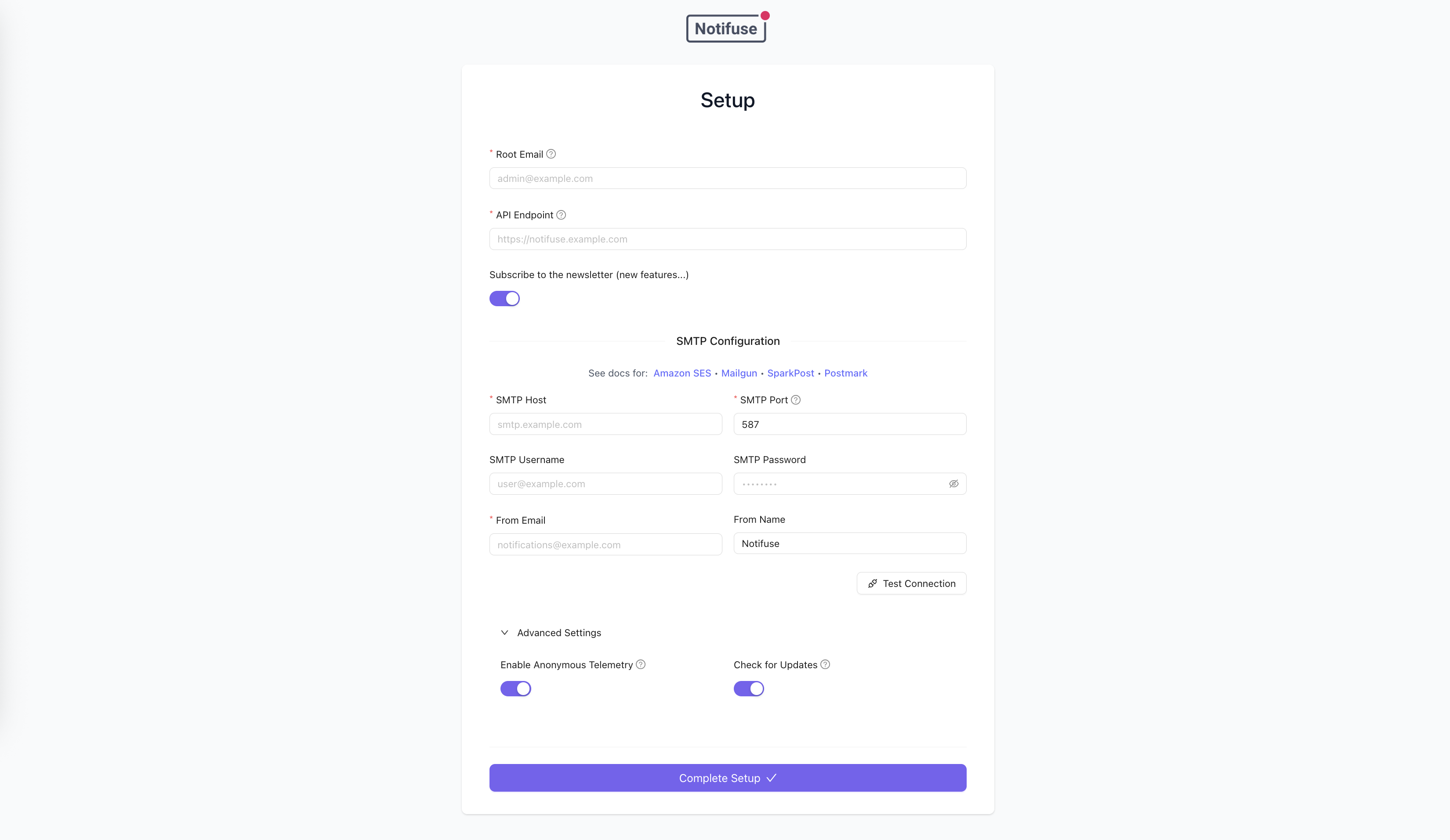
Quick Start with Setup Wizard
- Deploy Notifuse using one of the options below
- Access your instance in a web browser
- Complete the Setup Wizard:
- Enter your root administrator email
- Configure your API endpoint
- Set up SMTP settings
- Start using Notifuse!
Option 1: Docker Compose (Recommended for testing)
This option includes an embedded PostgreSQL database for easy testing and development:8081 with a PostgreSQL database.
On first launch, you’ll be guided through the Setup Wizard to configure your instance. Alternatively, you can configure environment variables in a .env file or directly in the compose.yaml.
Option 2: Standalone Docker (Production)
For production deployments, use the standalone Docker image with your own PostgreSQL database:PostgreSQL database (Option 2 only)
If using the standalone Docker option, you can use any PostgreSQL database with root credentials. Notifuse automatically creates a system database for itself. Recommended version: PostgreSQL 17 or higher A new database will be created for each Notifuse workspace to avoid multi-tenant issues (that’s why you need root credentials). Note: This is not required when using Docker Compose as PostgreSQL is included.An SMTP server
Notifuse needs an SMTP server to send system emails (e.g. password reset emails, invitation emails, etc.). If using SES, you can create SMTP credentials in the SMTP settings section of the SES dashboard.A public API endpoint
Notifuse needs a public API endpoint to be accessible from the web. Example:https://emails.yourcompany.com
Environment Variables
With the Setup Wizard, many environment variables are optional and can be configured through the web interface. Environment variables always take precedence over database settings when present.Required Variables
Generate SECRET_KEY:
SECRET_KEY that gives less than 32 bytes.
Replacing the secret key
SECRET_KEY can list several keys separated by commas (a comma that is part of a key is written
twice). The first key encrypts and signs; the others only let Notifuse read the data stored under them.
When Notifuse starts with a list, it re-encrypts that data with the first key, in a single transaction,
before serving anything. To replace your key:
- Generate a new key with
openssl rand -base64 32. - Put it first and your current key after it:
SECRET_KEY=<new key>,<current key>. If your current key contains a comma, write that comma twice, and if it starts or ends with one, put a space between it and the comma that separates the keys (SECRET_KEY=<new key>, ,,<rest of the key>). A version before 42.0 reads the whole list as a single key: when you upgrade to 42.0, set the list in the same step. - Stop every Notifuse instance, then start them all with that value. An instance still running with the current key alone cannot read the data the others re-encrypted, and an instance running the list cannot read what such an instance writes until the next start with the list.
- Once every instance runs with that value, set
SECRET_KEYto the new key alone, without quotes or spaces around it: a single key is used exactly as written. If it opens none of the stored workspaces (or, while none is stored, none of the encrypted system settings), Notifuse does not start.
user.rootSignin sign with the new key. An API client that
saves an integration with the encrypted credentials it read before the change is refused until it reads
the workspace again. Database backups taken before the change still need the former key. Data kept in
each workspace’s database, such as message history, is encrypted with that workspace’s own key and is
not affected.
Application Variables (Optional with Setup Wizard)
These variables can be configured via the Setup Wizard on first launch, or set as environment variables. Environment variables always override wizard settings.Multiple root users:
ROOT_EMAIL can hold more than one email
(comma/semicolon-separated), so a shared instance can have several
administrators with root privileges — creating workspaces, accessing System
Settings, and authenticating programmatically. A user account is created for
each listed email on startup, so every root can sign in immediately. Matching
is case-sensitive, and a single email behaves exactly as before. The Setup
Wizard establishes the first (primary) root; additional roots can be added
there as a list or via the ROOT_EMAIL environment variable.Optional Variables
SMTP Bridge Configuration
The SMTP Bridge feature allows you to connect SaaS applications that only provide SMTP integration (like Supabase Auth, Firebase, Auth0, etc.) to Notifuse. This gives you full control over email designs and branding using Notifuse’s MJML editor, instead of being stuck with default SaaS templates. See SMTP Bridge usage documentation for examples of how to send emails once configured.TLS Modes
The bridge supports three TLS postures viaSMTP_BRIDGE_TLS:
When
SMTP_BRIDGE_TLS is unset, Notifuse picks starttls if both cert and key are provided, otherwise off in development.
Production Setup with Let’s Encrypt
For production deployments, use valid TLS certificates from Let’s Encrypt using certbot with DNS challenges.Step 1: Install Certbot
Step 2: Generate Certificate with DNS Challenge
DNS challenge is recommended because it doesn’t require opening port 80 or 443, and works even if your SMTP server is on a different port.Step 3: Add DNS TXT Record
Add the TXT record to your DNS provider:Step 4: Encode Certificates to Base64
After certbot successfully generates the certificates, encode them to base64:Step 5: Add to Environment Variables
Copy the base64-encoded values to your.env file:
Certbot automatically sets up a renewal cron job. After certificate renewal, you’ll need to
re-encode the certificates to base64 and update your environment variables.
Development Setup with Self-Signed Certificates
For local development, you can use self-signed certificates:Configuration Management
Setup Wizard vs Environment Variables- Setup Wizard: Ideal for quick deployments and testing. Configuration is stored securely in the database and can be managed through the web interface.
- Environment Variables: Recommended for production deployments. Provides better security for sensitive data and allows configuration management through your deployment pipeline.
- Priority: Environment variables always take precedence over database settings when both are present.
Programmatic Authentication
For CI/CD pipelines and automated deployments, a root user can authenticate programmatically using HMAC-SHA256 signature, bypassing magic link authentication. WhenROOT_EMAIL lists multiple addresses, use any one of them as ROOT_EMAIL below — the signed email must exactly match one of the configured root emails.