
Configuration
Navigate to Settings → Integrations → Add Integration → SendGrid.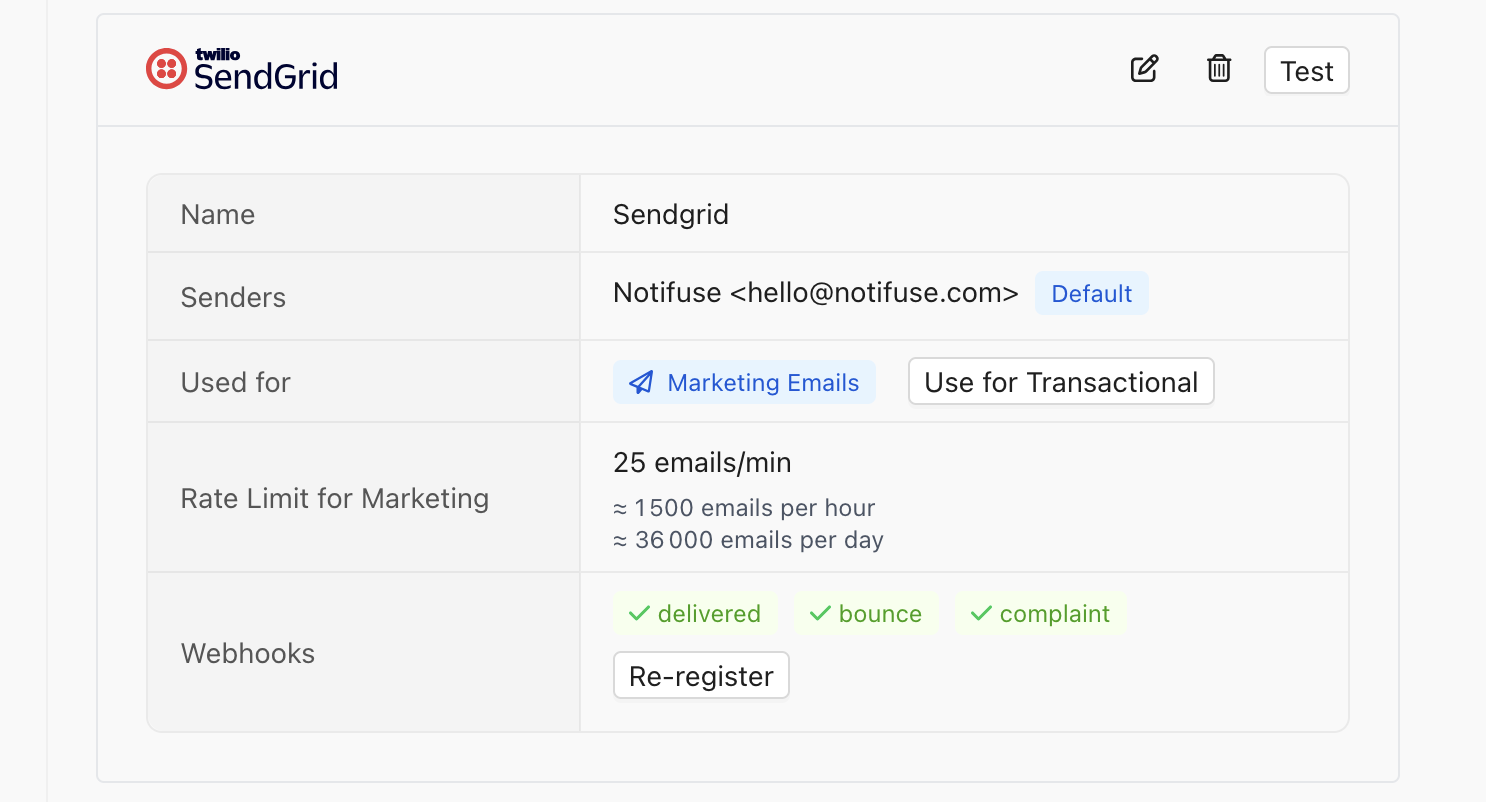
Form Fields
Senders List
Add sender addresses that have been verified in your SendGrid account:
Important: Senders must be verified through SendGrid’s Sender Authentication before they can be used.
Usage Types
Configure how this SendGrid integration will be used:
You can enable both options to use the same SendGrid configuration for all email types.
Webhooks
Notifuse automatically registers the following SendGrid webhooks:
These webhooks provide real-time feedback on email performance and delivery status.
Prerequisites
Before configuring SendGrid:- SendGrid Account: Active SendGrid account
- Verified Senders: Email addresses or domains verified through SendGrid’s Sender Authentication
- API Key: SendGrid API key with Mail Send permissions (starts with
SG.)
Creating an API Key
- Log in to your SendGrid account
- Navigate to Settings → API Keys
- Click Create API Key
- Select Restricted Access and enable:
- Mail Send → Full Access
- Tracking → Full Access (for webhooks)
- Copy the generated API key (it starts with
SG.)