
Overview
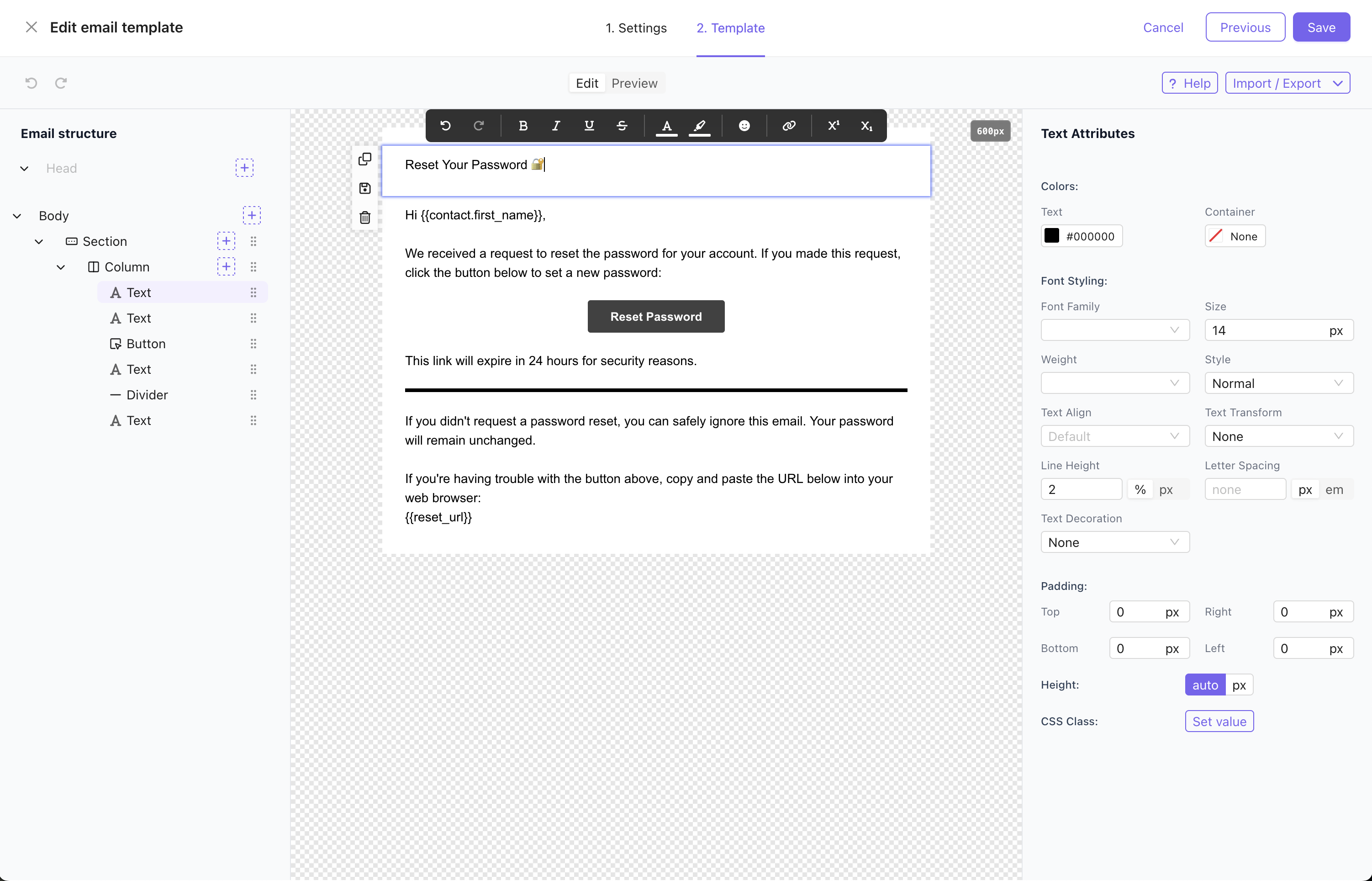
Email templates in Notifuse are built using a visual drag-and-drop editor that combines:- MJML Framework: Guarantees full email client compatibility across all devices and email providers
- Liquid Templating: Dynamic content personalization using variables like
{{ contact.first_name }} - Version Control: Every template update creates a new version to track previously sent contents
- Multi-Purpose: Used by both broadcast campaigns and transactional notifications
Template Builder Features
- Drag-and-Drop Interface: Visual editor for easy template creation
- Responsive Design: Mobile-optimized layouts that work across all devices
- Pre-built Blocks: Headers, footers, buttons, images, and content sections
- Brand Consistency: Colors, fonts, logos, and styling options
- Real-time Preview: See exactly how your email will look before sending
Editor modes
When you create a template, you choose how its email is written:- Visual: the drag-and-drop editor, where blocks, styles and Liquid variables are edited in place.
- Code (MJML): you write the MJML yourself, with Liquid, in a code editor with a live preview.
- Code to visual: in the code template, use Export MJML; in the new visual template, use Import → MJML with that file.
- Visual to code: in the visual template, use Export → MJML; in the new code template, use Import MJML with that file.
{% for %} loop around sections) is not kept when importing into it. In the other direction, write Liquid inside links with single quotes ({{ link | append: '?ref=mail' }}): double-quoted text there doesn’t survive the export.
The new template has its own ID. Point your broadcasts, transactional notifications and automations at it, then delete the old one.
Usage
Templates are used across Notifuse for:- Broadcast Campaigns: Mass email campaigns sent to your contact lists
- Transactional Notifications: Automated emails triggered by user actions
- Double Opt-In Emails: Sent when anonymous contacts subscribe to lists
- Welcome Emails: Sent when contacts confirm their subsription to lists
- Unsubscribe Confirmations: Sent when contacts opt out
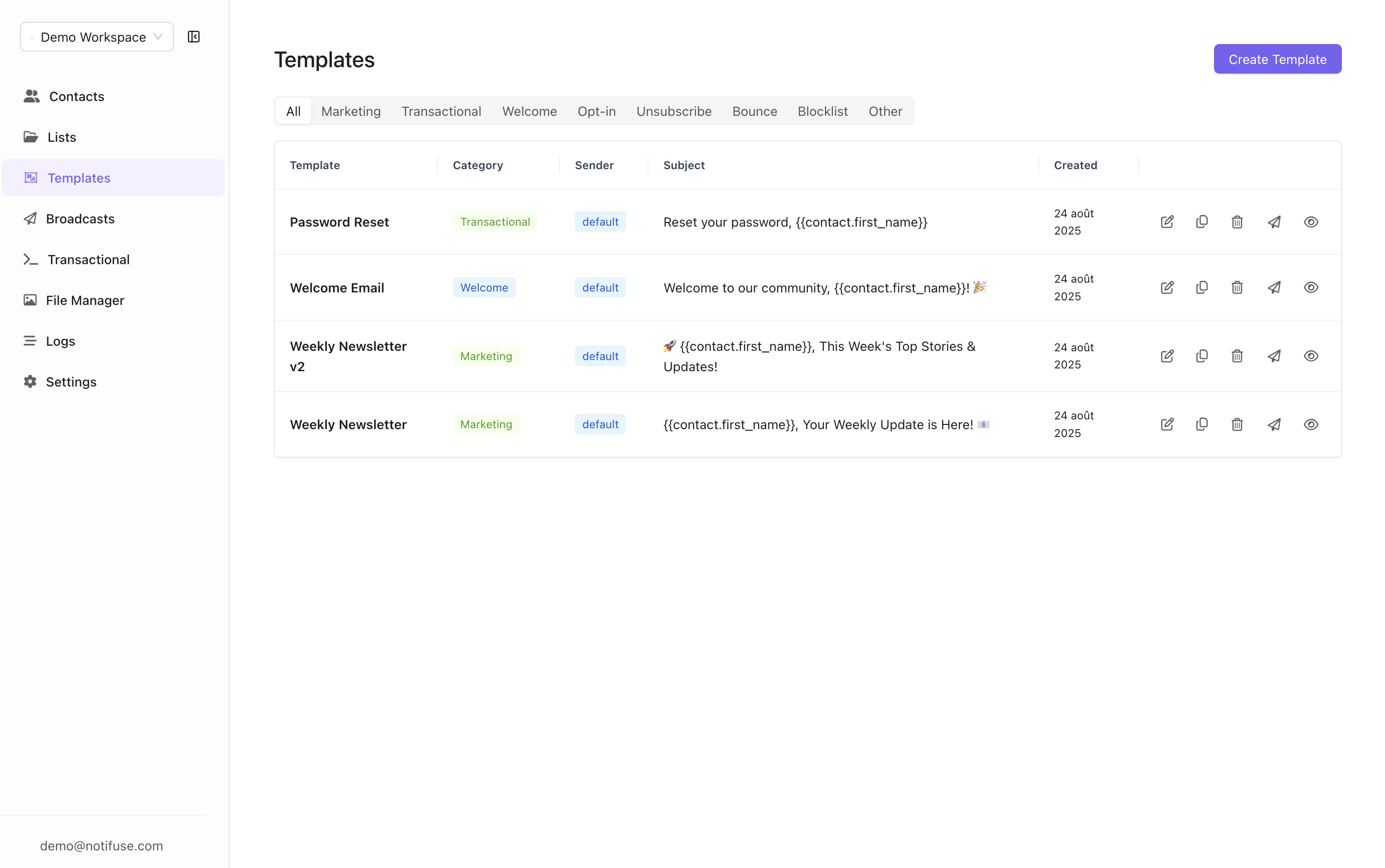
Deleting a template
Deleting a template removes it from the template list and from every template picker, but Notifuse keeps it, with all its versions: messages already sent were rendered from them, and the message history and broadcast reports still display them. Because of this, a deleted template keeps its ID. Creating a new template with the same ID is refused, and the API’stemplates.update answers 404 for it. Give the new template another ID.
Templates managed by an integration, such as the Supabase auth emails, can’t be deleted.
Translations
A template can carry one version of its content per language. Which version a contact receives is decided at send time from the contact’slanguage field, so one broadcast or one transactional notification serves every language you have written — nothing to branch on in your automations or your API calls.
Enabling languages in the workspace
Translations are only offered for languages the workspace has switched on. Open Settings → General:- Supported Languages — the languages this workspace works in. Add every language you intend to write templates for; a language that is not listed here cannot be given a translation.
- Default Language — the language a template’s main content is written in, and the version a contact receives when nothing better matches. Every workspace has exactly one.
en, fr, de, es. The default language must be one of the supported languages, and the list must contain at least one.
With a single supported language the template editor shows no translation controls at all. The Translations tab appears as soon as the workspace supports more than one language.
Writing a translation
When creating or editing a template, the editor has a tab per stage: Template, in the workspace’s default language, and Translations, listing each other supported language. Open a language to write its version: its own subject, preview text and body, with the same visual editor, MJML code mode and Liquid variables as the default. Reset translation copies the default-language content into the translation as a starting point, replacing whatever was there. A language that has no translation is simply skipped at send time — you do not have to translate a template into every supported language at once.Which version a contact receives
At send time Notifuse reads the contact’slanguage:
- If it is empty, or equals the workspace’s default language, the contact receives the default content.
- If the template has a translation for that language, the contact receives that translation.
- Otherwise the contact receives the default content.
language on contacts.upsert), or from a subscription form; see Contacts.
To check a specific language before sending, the template preview and the test-send dialog both have a Language selector.
Self-hosted: adding a language to a template, or editing the content of an existing translation, needs a licence key. Translations already saved keep being sent in every licence state, editing the rest of a template that carries them is never refused, and removing a translation is always allowed. Every Notifuse Cloud plan includes it.
Liquid Syntax
Notifuse uses Liquid templating to insert dynamic content into your emails. Variables are enclosed in double curly braces and automatically replaced with actual data when emails are sent.Liquid is evaluated in the template you write, not in your data. A value coming from a contact field, a data feed or an API call is inserted as text: if it happens to contain
{{ ... }} or {% ... %}, that text is shown as-is, not run as Liquid. Put merge tags in the template; feed the data plain values.Contact Variables
Thecontact object contains the full contact profile with all stored information. Access any contact field for personalization:
List Variables
Reference the mailing list information:System URLs
Use pre-generated URLs for common actions:Unsubscribe Link
List-Unsubscribe header that Notifuse adds to every email sent to a list.