
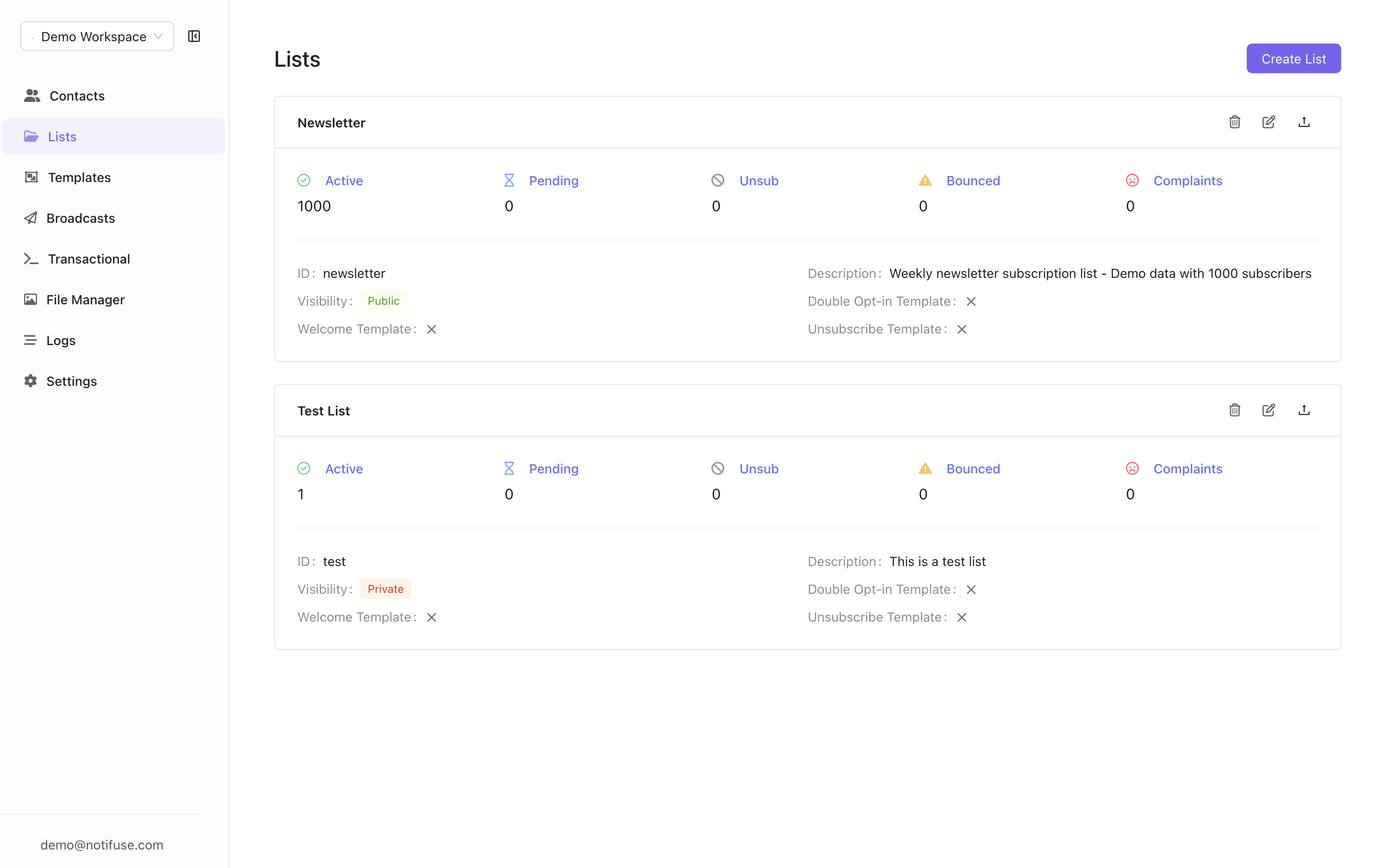
Contact Statuses
Contacts within lists can have different statuses that determine their engagement eligibility:Important: Broadcasts leave out the list’s unsubscribed contacts unless the broadcast setsA contact who unsubscribes from an email sent for a list they weren’t on, such as an automation email, is recorded on that list as unsubscribed. An unsubscribe never replaces a bounced or complained status.exclude_unsubscribedtofalse, for example for a legal notice. Leavingexclude_unsubscribedout of an API request means exclude them, as the console does. Bounced and complained contacts are never emailed, whatever that setting.
List Visibility
Public Lists
- Notification Center: ✅ Appear in the notification center
- Subscriber Access: Users can see and subscribe to these lists through your notification center
- Use Case: Ideal for newsletters, announcements, and general communications
Private Lists
- Notification Center: ❌ Not offered to contacts who aren’t on them. A contact sees a private list they are active or pending on, and can only leave it there.
- Subscriber Access: Only the workspace adds contacts, from the console or the authenticated API (
lists.subscribe). A contact can’t join a private list from the notification center or the public/subscribeendpoint, nor come back after leaving one. Adding them back is up to the workspace. A link from their emails only lets them confirm a pending double opt-in. - Use Case: Perfect for internal communications, VIP segments, transactional lists, or one-time broadcasts
Double Opt-In Configuration
Enabling Double Opt-In
When you activate double opt-in for a list:- Imported Contacts: Contacts added via CSV import or API will always be “active” (they bypass double opt-in)
- Anonymous Subscribers: Users subscribing via forms (like a newsletter signup on your website) will be “pending”
- Confirmation Required: Pending contacts must click a confirmation link in their email to become “active”
- Compliance: Helps ensure GDPR compliance and reduces spam complaints
Welcome Template (Optional)
- Purpose: Automatically sent to contacts when they become “active”
- Timing: Triggered after successful subscription or double opt-in confirmation
- Content: Welcome message, onboarding information, or subscription confirmation
Unsubscribe Template (Optional)
- Purpose: Automatically sent when contacts unsubscribe from the list
- Timing: Triggered immediately when a contact’s status changes to “unsubscribed”
- Content: Confirmation of unsubscription, feedback request, or alternative communication options
Re-subscription Handling
When a contact attempts to subscribe to a list they have previously interacted with, Notifuse handles the request based on their current status:Why bounced and complained contacts are blocked
Re-sending emails to addresses that have previously hard-bounced or filed spam complaints damages sender reputation and can trigger domain blacklisting. These contacts are permanently suppressed at both the application and database level.Bulk import behavior
When contacts are imported via CSV or the API withsubscribe_to_lists, the same protections apply at the database level. Contacts with unsubscribed, bounced, or complained status will not have their list status overwritten. This prevents accidental reactivation of opted-out contacts through bulk operations.
Privacy by design
Public subscribe endpoints always return HTTP 200 regardless of the contact’s internal status. This prevents email enumeration attacks where an attacker could probe the endpoint to determine whether a specific email address is subscribed.Permissions
Lists answer to the Lists permission: read shows lists, their settings and their subscriber counts, and write creates, edits and deletes them and manages subscriptions. Listing the actual member addresses of a list needs Contacts read as well, and changing or removing an existing subscription needs Contacts write as well.Best Practices
- Status Management: Regularly review contact statuses to maintain list health
- Double Opt-In: Enable for compliance and to ensure engaged subscribers
- Template Setup: Configure welcome and unsubscribe templates for better user experience
- List Organization: Use separate lists for different audience types (e.g., “Newsletter”, “Product Updates”) and combine with segment filters for precise targeting in broadcasts